Batch To Scheme Mappings
To access batch to scheme mappings, select Option Settings from the sidebar of any Train Workbank.

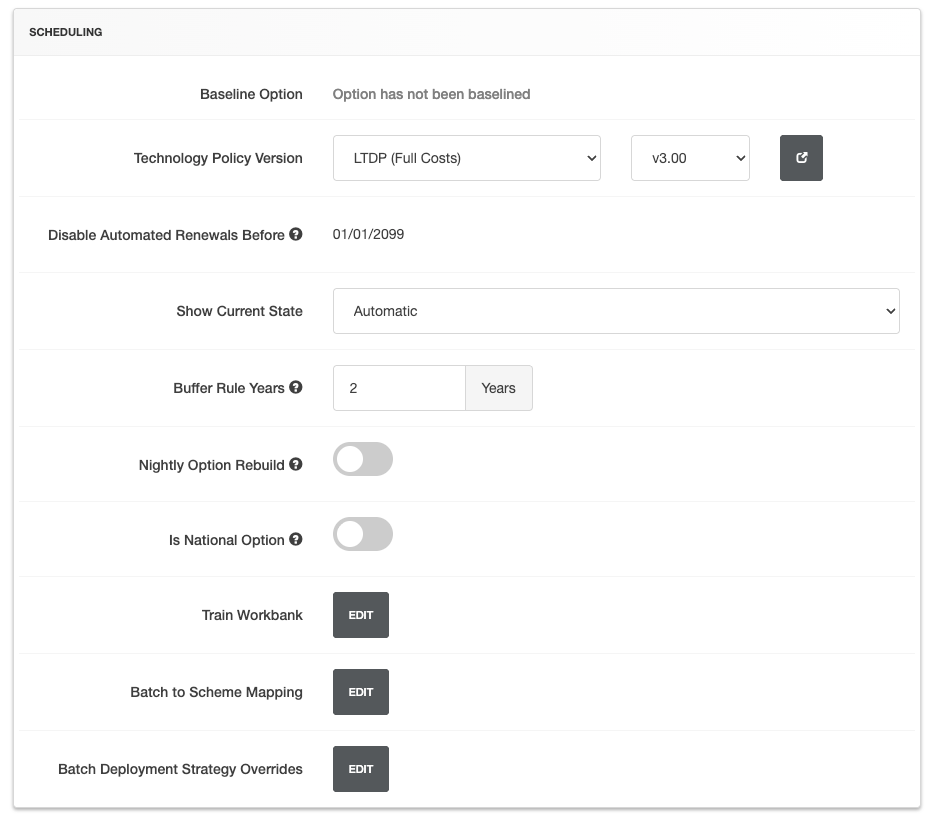
Select the Advanced Tab, then scroll to Scheduling. Click Edit on Batch to Scheme Mapping.
The following modal will then be displayed:
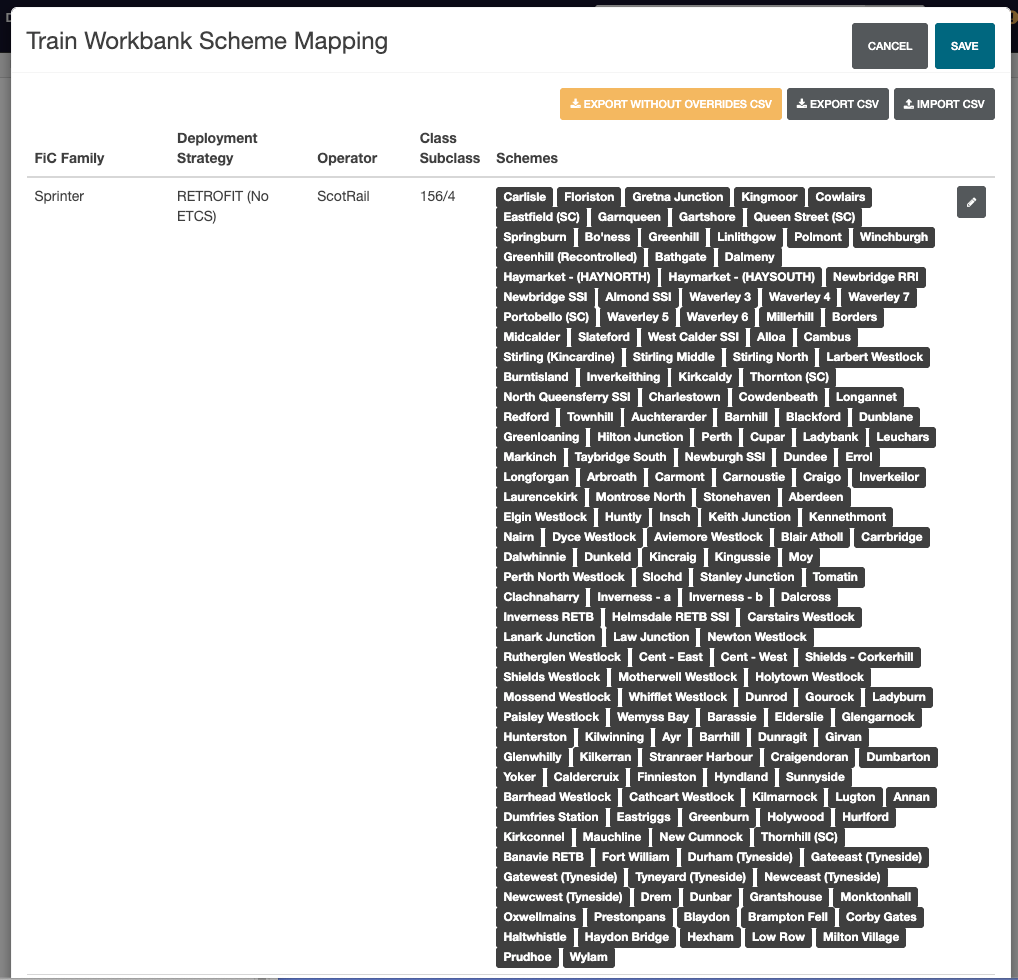
To Edit an mapping, click on the Edit icon.
Only interlockings in the option are shown.
Interlockings can now be selected (or deselected using the toggle switch). To easily find an interlocking, use the search function.
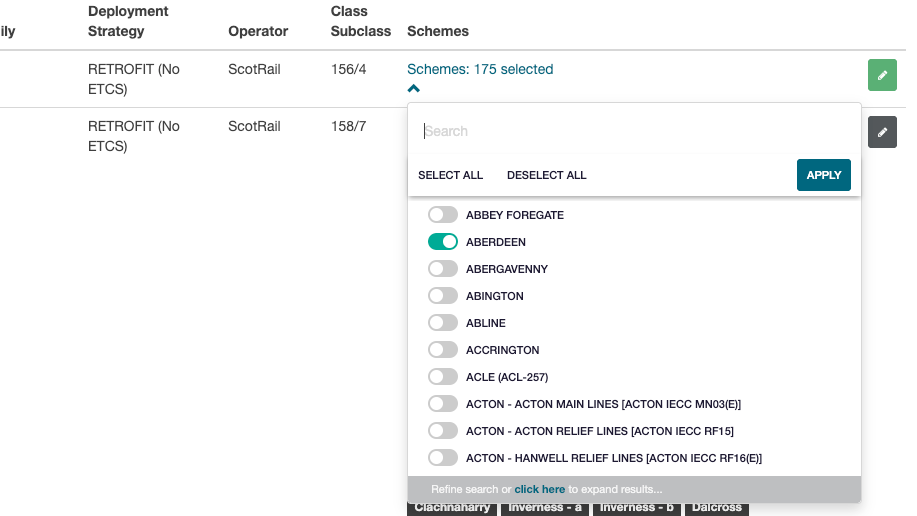
To save changes click apply.
The row will then display a Green Edit icon to show changes have been made.

To save these changes, click on Save at the top right of the modal. The mapping has now been updated.
Once a mapping has been updated, the option will require rebuilding.
Batch To Scheme Warnings
When a Batch to Scheme mapping has been updated and displays a warning, this means it will not persist after a SADS import. After the next import, it will require editing again.
If no warning is displayed, this will persist after the SADS import.
Import / Export Options
Import / Export options allows for the current Batch to Scheme mappings to be uploaded or downloaded.
After selection an option, a notification will be displayed with a download link to any requested file.
Export Without Overrides
This option can be used to reset the batch to scheme mapping.
Download the Export without Overrides CSV then use the import feature to override any current data.
Export Without Overrides exports the global interlocking to train mapping. This is the options default Batch to Scheme mapping without any user made changes.
Select this option to download the CSV file.
Export
Export provides a CSV export of the current interlocking to train mapping.
Select this option to download the CSV file.
Import
The CSV file must be in the correct format.
To get a template file, download an export first.
The import option allows all current data to be overridden. Select the import option, browse to find the file then select import.