Creating Options
What Is An Option?
An option is a scenario for an intervention on the network, including what technologies will be installed where and when. The outputs are based on the Green Book Five-Case model.
Options can be found in a business case.
Creating New Options
New options can be created by selecting the "add option" icon.

Create Empty Option
Create Empty option allows you to manually select all elements of a new option.
The following data can be added:
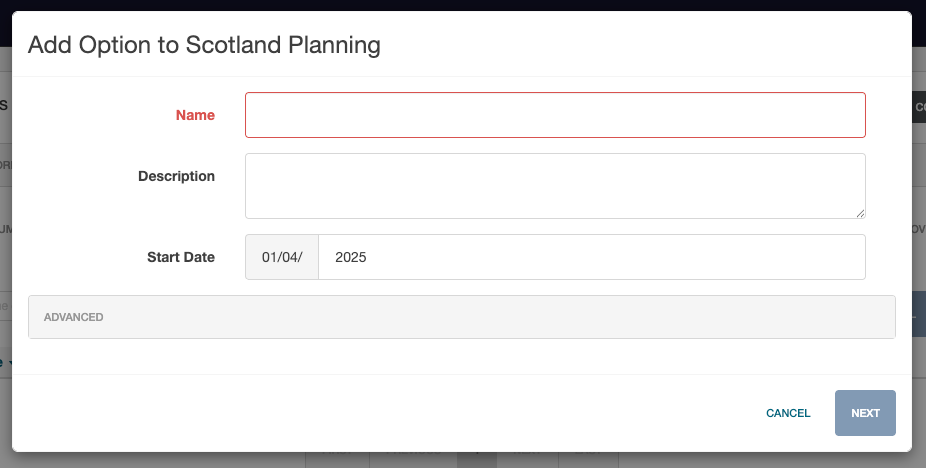
| Field | Usage |
|---|---|
| Name | The option name must be unique within the business case. |
| Description | Additional information about the option. |
| Start Date | The earliest interventions in your option. |
The following data can be added in the "advanced options" section:
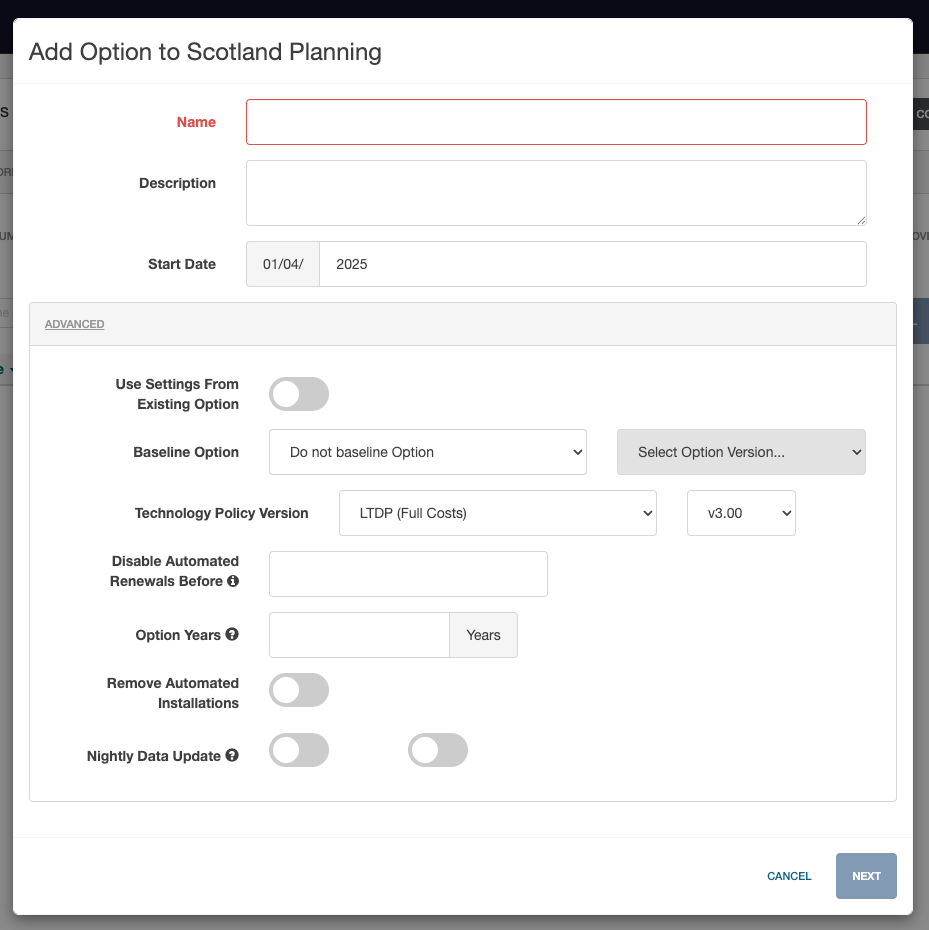
| Field | Usage |
|---|---|
| Use Settings From Existing | Allows cloning of existing option settings. |
| Baseline Operation | Select if your option is created on top of projects contained within existing operations. |
| Technology Policy Version | Set the technology policy version. |
| Disable Automatic Renewals Before | Any prior interventions will be displayed on this date. |
| Option Years | Set the number of years for option outputs. |
| Remove Automated Installs | Remove any automated installs. |
| Nightly Data Update | Automatically rebuild and cache option nightly based on DataStore updates. |
Create Option From CSV
The Create Option From CSV allows users to upload an option that has been preconfigured within a CSV template.
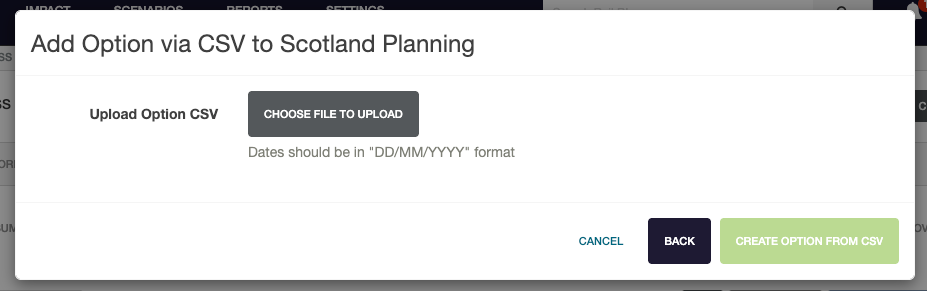
Once the basic option configuration has been completed, the CSV file can be uploaded to import the required option data.
Duplicate Existing Option
Duplicate From Existing is useful if you wish to copy an existing option in order to make modifications to it for later comparison.
Once a unique name has been set, along with description of the option created, click "next" and select the option to clone from the "choose option to clone" drop-down box.
Click "next" and select the option you wish to clone from the drop down list. The options listed will correspond to those you have access to within the user group assigned to the business case you are creating your option within.
If the user wishes to use a different area data then is included with the option being cloned, this can be selected here. If no changes are required, click "next" followed by "save new option".
If multiple versions of the option are available, these can be selected from the "select version" drop-down box.
Create CSV Template
Create CSV Template provides a user interface to create a CSV for import when creating an option from CSV.
After clicking "Create CSV Template", users can choose to continue with Interlocking Areas only if they wish to add interventions to track pieces, trains or locations select "detailed template".
Disciplines
Some disciplines (such as Telecoms) must be enabled at user group level before they are available.
To add other disciplines to an option, select the edit icon from the second page of the modal.

Once the Enable Disciplines button is shown, select it to determine which are enabled for the newly created option.
Asset Types / Areas
The asset types / asset areas available to be added to the option are dictated by enabled disciplines.
Once options have had their areas defined, additional areas can be added but existing items cannot be removed.
Import from Option
After creating an option, you can import interventions or blockers from another option by selecting the dropdown arrow beside Add in the rollout calendar and choosing Import From Option.
For the full workflow—including replacement modes, control-period selection, shared-area filtering, related-area selection and the final settings review—see Import From Options.