Assets
The Asset page within Rail BI provides information on all Asset Categories available. It acts as a central reference point for reviewing all asset information.
Assets Table
The Assets table displays a listing of all Asset Categories.
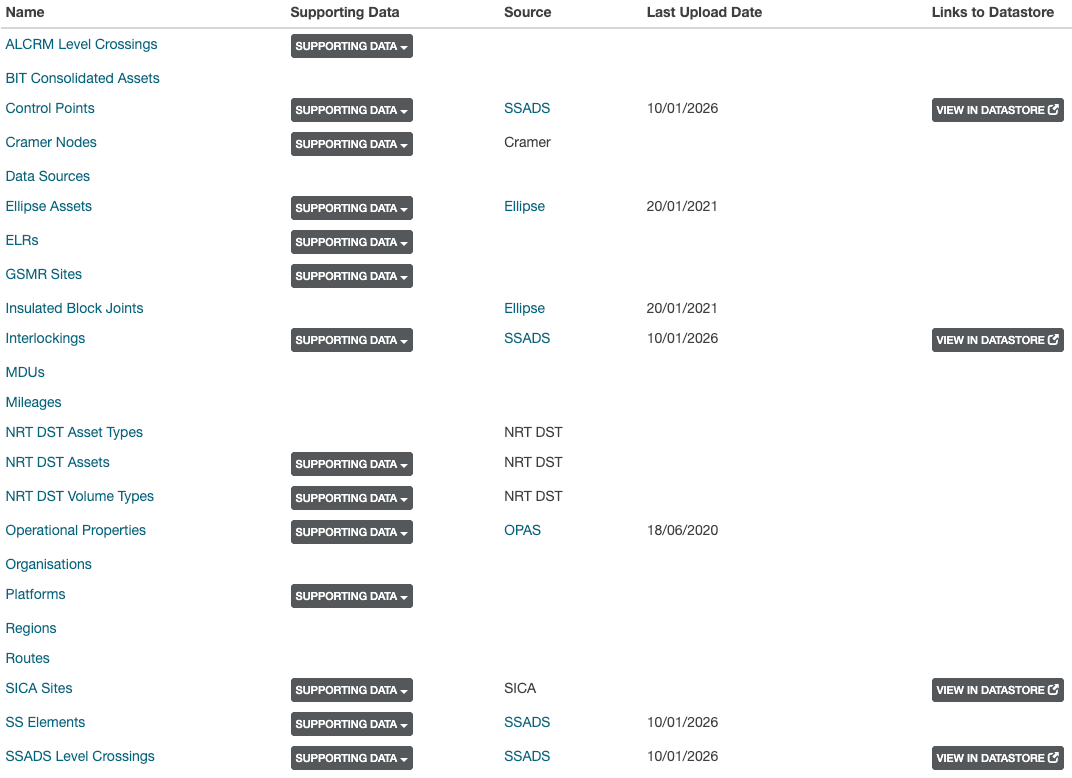
Each row represents a single Asset category, with the following columns:
Within the Assets table, the following columns are available:
| Column Name | Description |
|---|---|
| Name | The name of the Asset Category |
| Supporting Data | A selectable dropdown containing available supporting datasets for the Asset Category. Selecting an option opens the supporting data |
| Source | The original source of the asset data |
| Last Upload Date | The date when the most recent data import was completed |
| Link to Datastore | Link to view the asset data in Datastore |
Viewing Asset Category Data
To view data for a specific Asset Category, select the category name in the Name column of the Assets table. This opens the Category table for the selected asset.
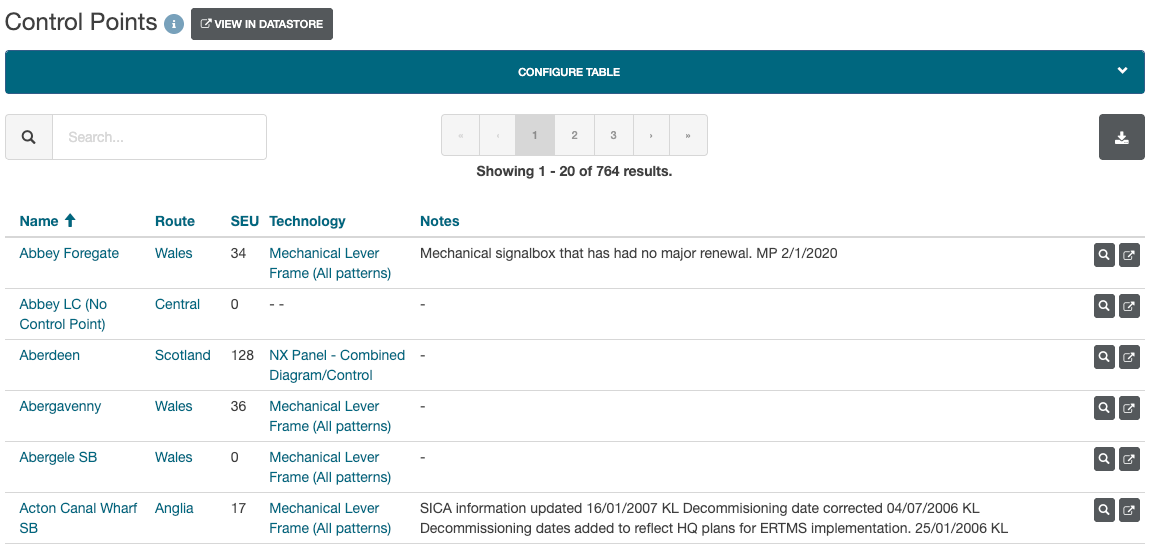
Use the search bar to quickly find specific assets within the selected category by entering keywords or values.
The table updates automatically to display matching results.
View Asset Data
There are two ways to view the asset data.
To view the asset data within Rail BI, click on the assets name to launch the data view.
To view the asset data within Datastore, click on the View In Datastore icon on the right of the row.
If the data is being viewed within Rail BI, there is a link to Datastore next to the asset name.

Configure Table
The Configure Table option allows you to customize the table by:
- Adding or removing columns
- Applying filters to the table
To add a filter, select Configure Table → Filters.
These options allow you to tailor the table view to support specific analysis or reporting needs.
Default Category Breakdown Table Columns
By default, the Category breakdown table displays the following columns:
- ALCRM Name
- Route
- SSADS Control Point (if available)
- SSADS Data (if available)
Viewing and Downloading Data
- To view the data, select the View Data icon.
- To download the data, select the Download icon.