Import From CSV
Import From CSV creates a new option from a flat CSV export. It can be used to copy an option into a new option or to make bulk edits: download an option export, change the CSV, and import the changes into a new option. The existing option is not updated in place, so you can review the imported option and compare it with the source.
The CSV can be produced from an existing option's rollout calendar. The export can include blockers, project delivery data, automatic projects and cost build-up overrides, depending on the selections made at export time.
Before you start
- Confirm that you can edit the destination business case.
- Decide which option will be the source for the CSV.
- Check the source option's start date, option area and cost data set. These affect the warnings shown during import.
- Keep the exported file as a CSV. Imported dates must use
DD/MM/YYYY.
Export the source option
-
Open the source option's rollout calendar.
-
Select the Export icon on the right side of the calendar header.
-
Select Option Export.
-
Review the optional data switches:
- Intervention Blockers includes blockers that prevent automatic interventions from being generated before the blocker date.
- Include Project Delivery Data includes business-plan delivery data. Oracle Projects data is not included, and changing an intervention's work type or commissioning date will not import that delivery data.
- Include Automatic Projects includes automatically generated projects. Projects that remain
Automated = Yesare ignored during import and are regenerated by the scheduler; change a project to manual if it must be imported as a manual project. - Include Cost Build-Up Overrides includes user overrides to intervention cost build-ups. These overrides are imported only when the source and destination use the same cost data set and version.
-
Select Export.
-
Wait for the File Export to become available, then select Download.
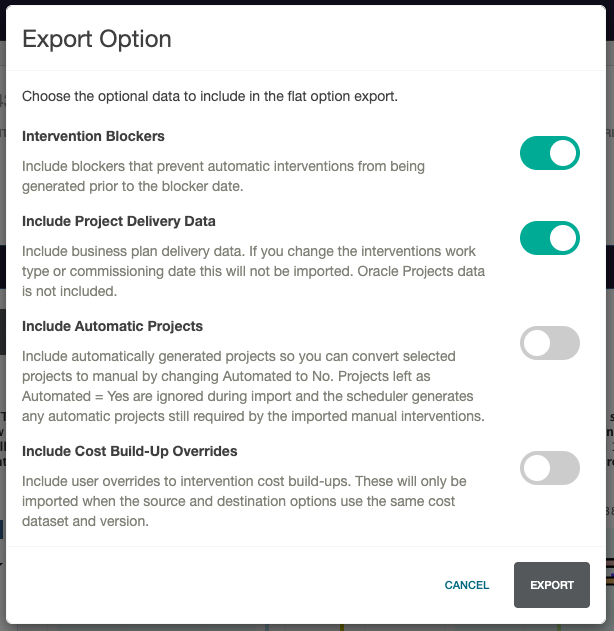
The export is a flat option CSV. The filename includes the business case, option and export type. Keep the file available for the upload step.
Open the CSV import workflow
- Open the destination business case.
- Open the Options tab.
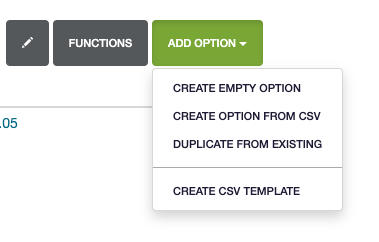
- Select Add Option.
- Select Create Option From CSV.
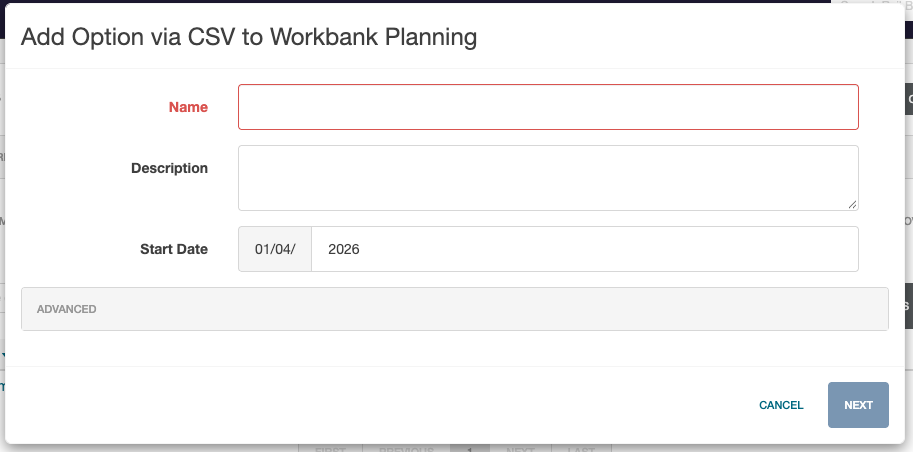
- Enter the new option's Name, Description and Start Date. Review Advanced settings if they are required for the new option.
- Select Next.
The option name is required. The start date is used when Rail BI checks commissioning dates in the uploaded CSV.
Choose the option area
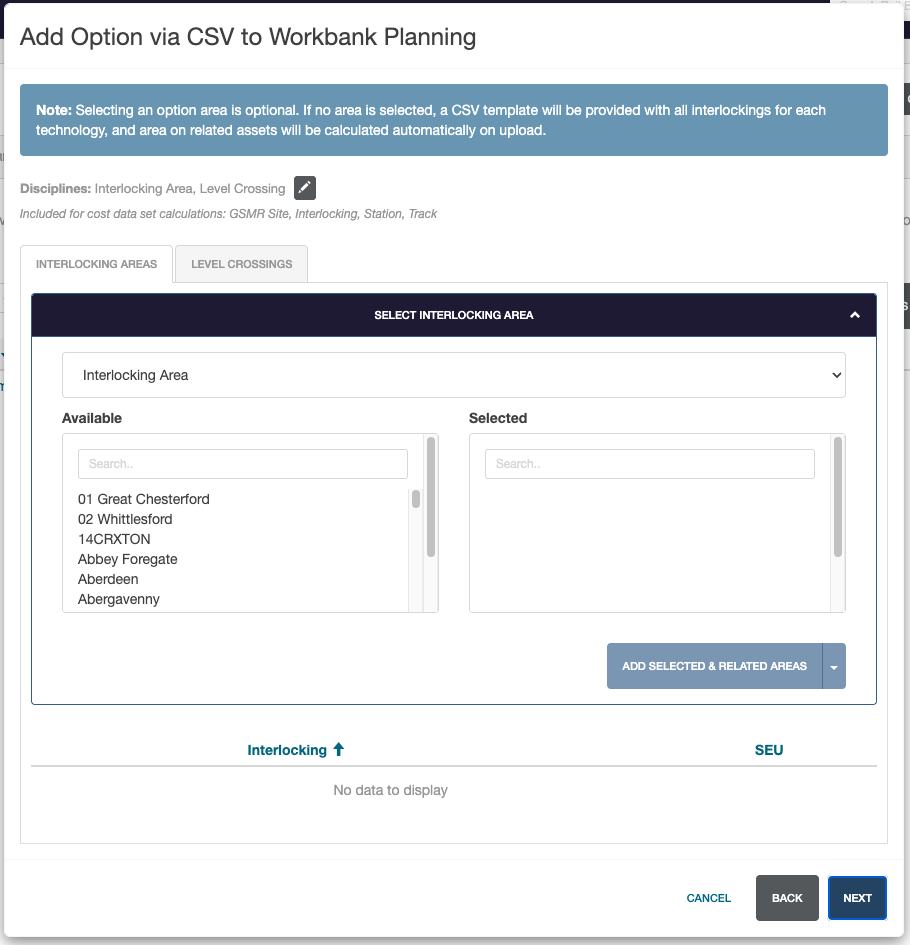
Selecting an option area is optional. If no area is selected, Rail BI provides a CSV template containing all interlockings for each technology and calculates areas on related assets during upload.
The area step provides:
- Disciplines — initially Interlocking Area and Level Crossing. Select Edit disciplines to change the disciplines used by the new option.
- Interlocking Areas — choose an interlocking area from the available list, then add it to the selected list.
- Level Crossings — use the tab to select level crossings where required.
- Add selected & related areas — adds the selected areas and related areas. Use the button dropdown to add selected areas only.
The selected-area table shows the areas included in the import and their SEU counts. Select Next when the area is correct. If the new option should cover the same network as the source, select the same full option area; this makes cost and volume comparisons more meaningful.
Upload and validate the CSV
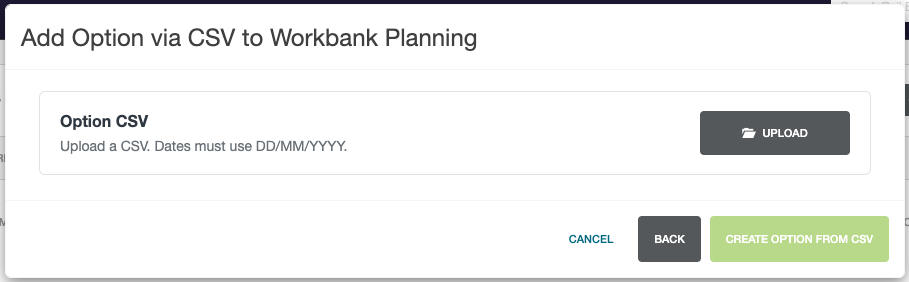
- Select Upload beside Option CSV.
- Choose the exported CSV file.
- Keep the window open while Rail BI checks every row. Large files can take longer to validate.
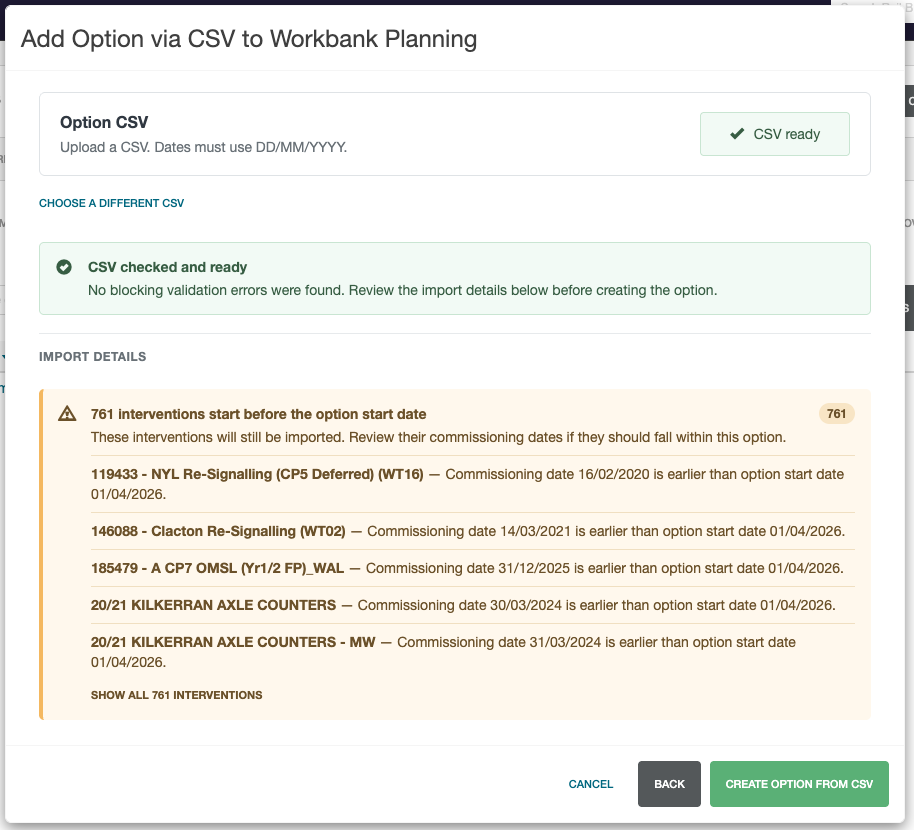
The upload step displays CSV Ready when the file has been accepted. A green CSV Checked and Ready message means that no blocking validation errors were found. Select Choose A Different CSV if the wrong file was uploaded.
Review the Import Details before continuing. Rail BI can report warnings even when the CSV has no blocking errors. For example, an imported 4435 export with a new option start date of 01/04/2026 reported 761 interventions with commissioning dates before the start date. These interventions were still going to be imported, so their dates needed to be reviewed.
Review the area warning
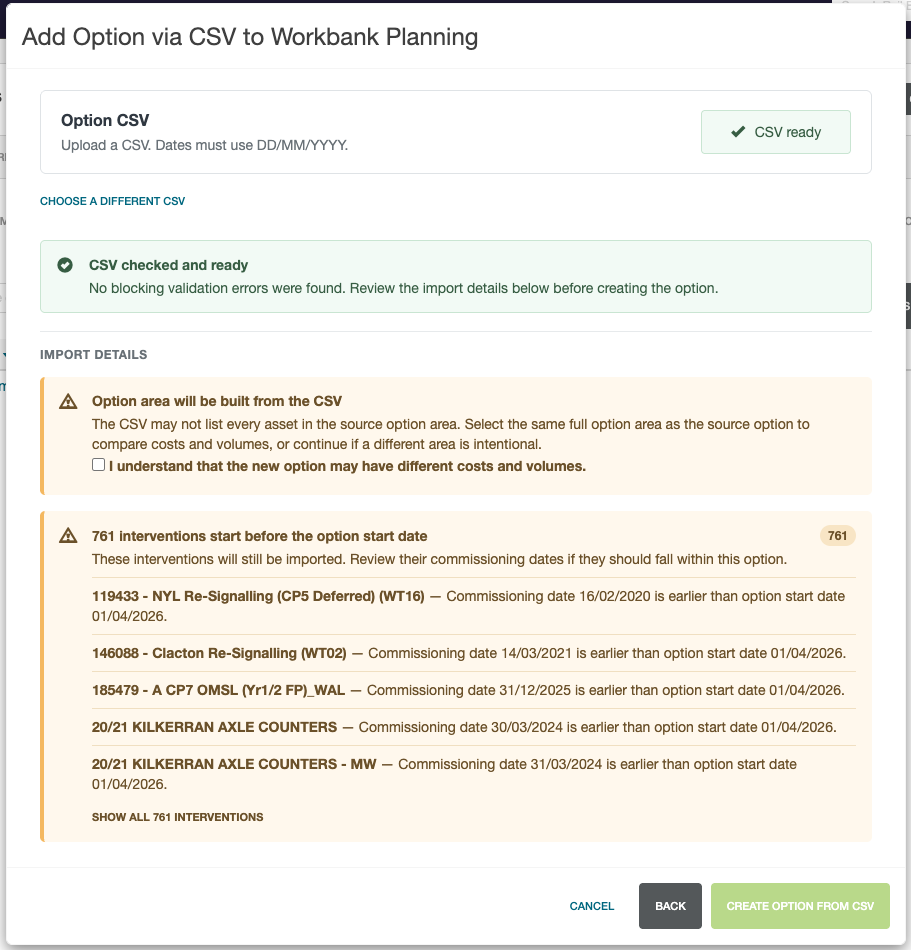
When no option area was selected, the review can show:
Option area will be built from the CSV
The CSV may not list every asset in the source option area. Select the same full option area as the source option if the new option must be comparable for costs and volumes. If a different area is intentional, acknowledge the warning by selecting I understand that the new option may have different costs and volumes.
The acknowledgement is required before the final action is enabled.
Create the option
After reviewing the validation result and warnings, select Create Option From CSV.
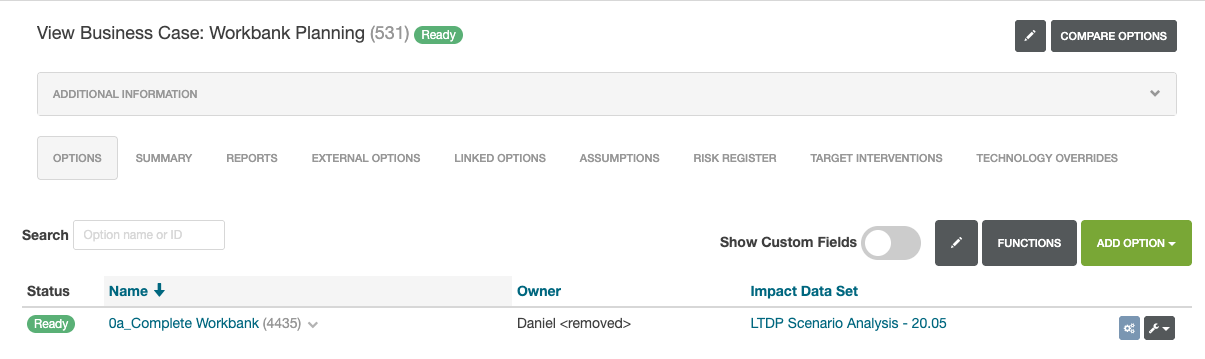
Rail BI starts creating the new option from the uploaded file and returns to the business case's Options tab. The new option may take time to finish processing, especially for a large export. Check the option status before opening it or starting output caching.
Troubleshooting
The CSV is rejected
Confirm that the file is a CSV and that dates use DD/MM/YYYY. Use the source option's Option Export workflow to create a file with the expected columns rather than editing an unrelated export.
The CSV is ready but warnings are shown
Warnings do not necessarily prevent creation. Review the affected rows, the new option start date and the option-area warning before acknowledging and creating the option.
Costs or volumes differ from the source
Confirm that the same full option area was selected and that the source and new option use compatible cost data sets and versions. Also check whether automatic projects or cost build-up overrides were included in the source export.
The new option is not ready immediately
CSV option creation is processed in the background. Wait for the option status to finish updating before caching outputs or comparing the new option with the source.