Element Selection
Element Selection
After starting an assessment, SICA opens the Select Types page. The breadcrumb identifies the site, and the page shows the element types included in the assessment.
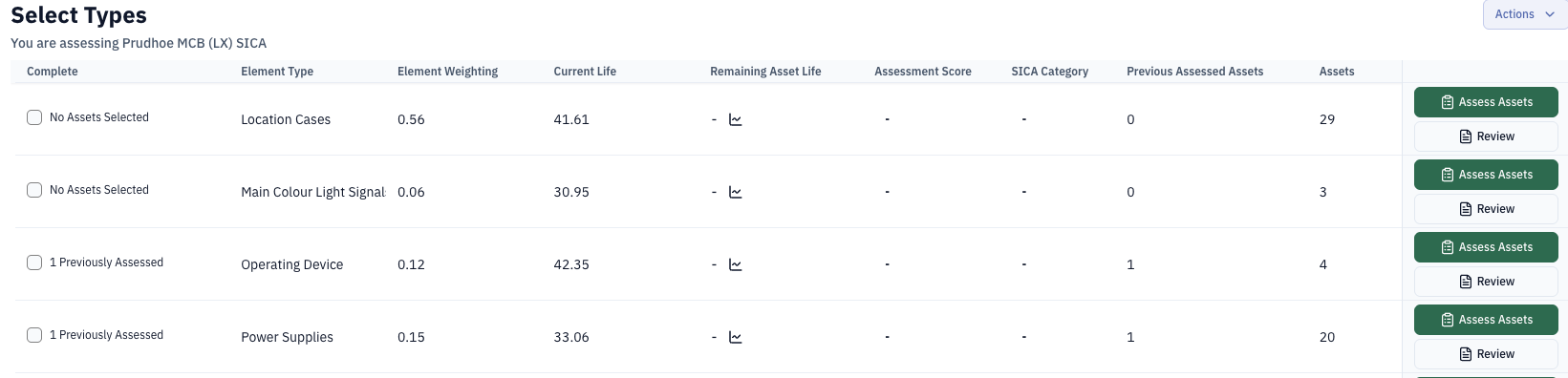
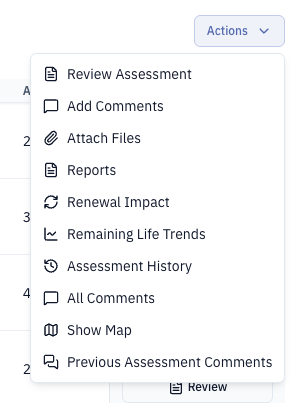
The table displays completion status, Element Type, Element Weighting, Current Life, Remaining Asset Life, Assessment Score, SICA Category, Previous Assessed Assets, and Assets. The Actions menu provides page-level assessment actions.
For selected element types, use Assess Assets to begin the asset assessment, or Review to view an existing assessment. The completion checkbox and status text show whether assets have been assessed.
Element types that were not selected at setup appear with Add Type, allowing them to be added to the assessment.
Completed Assessments
Once an element has had its assessment(s) completed, it will be highlighted in blue.
The SICA category will now display the overall score for that element.
The remaining asset life, along with an "edit" option is now displayed.
Selecting the "edit" option allows for manual changes to the remaining asset life, along with comments to support the change.
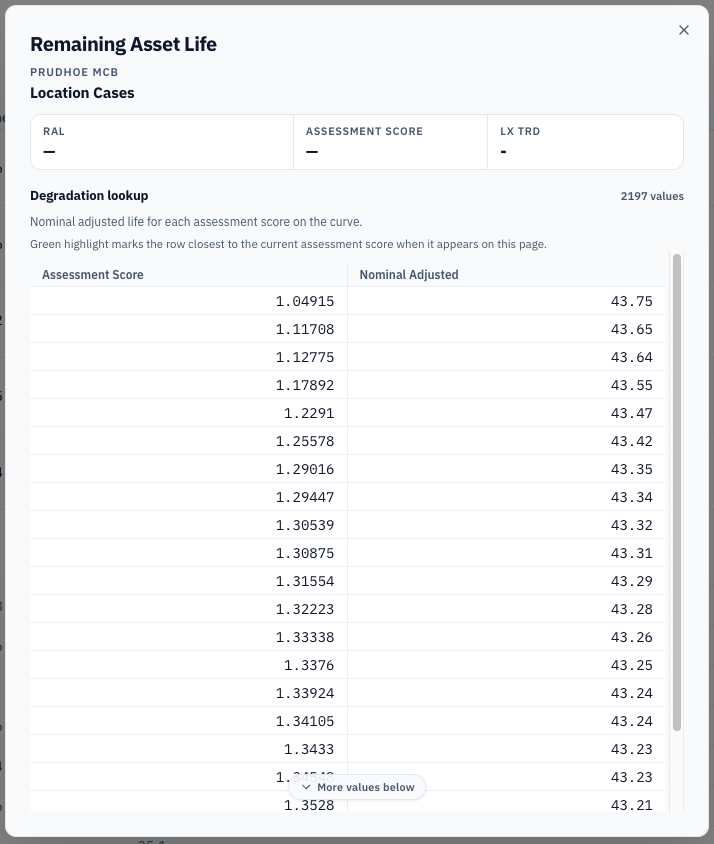
To view the expected remaining asset life based on the assessment scores, select the "view all values" icon.
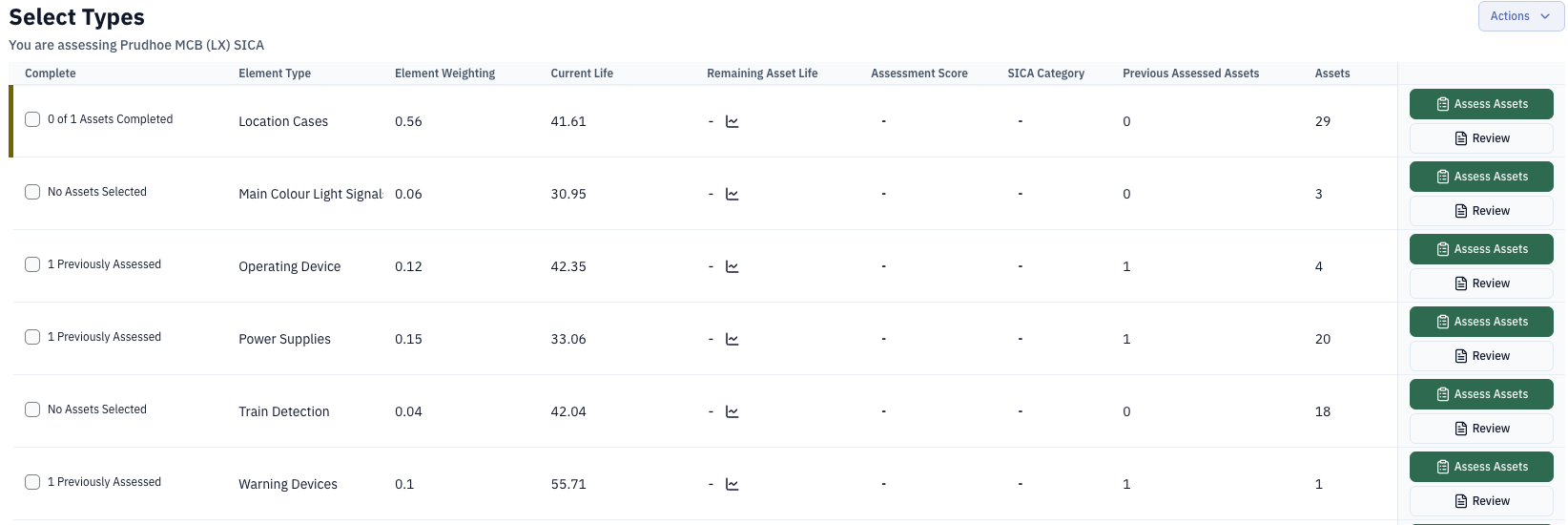
Review Assessments
To review any completed assessments, select the "review" button for the relevant element.
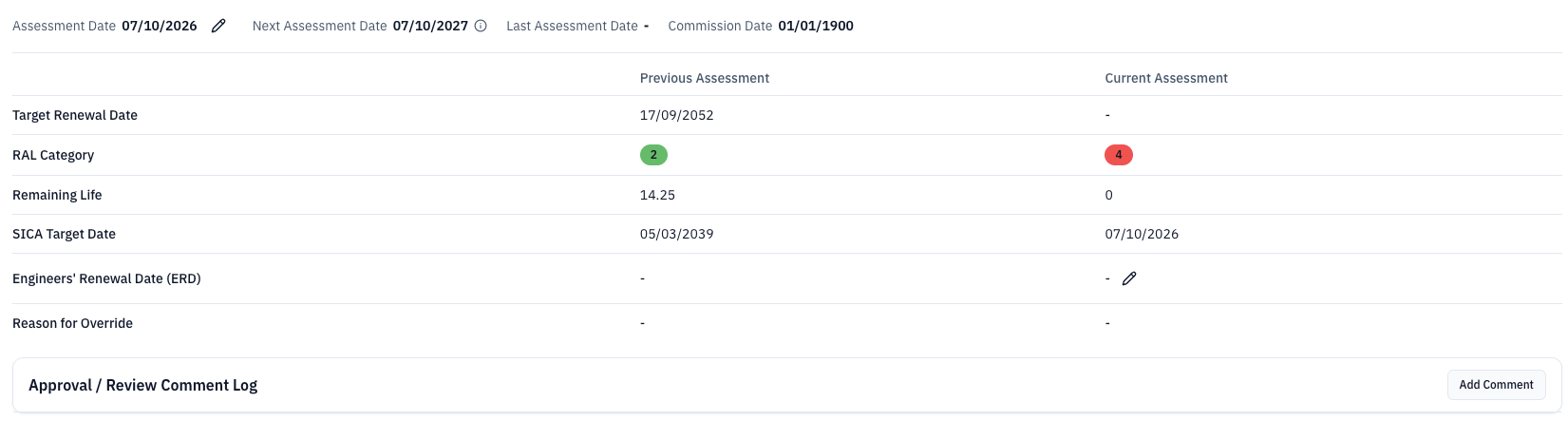
This will display the results of any completed assessments for that element type.
If assessments were completed in batches, the results for the batch is displayed as one assessment.
Additional Options
Several additional options are available on this page.
Asset Condition Report
Selecting Reports opens the Asset Condition Report page. When no report has been generated, the page shows No reports yet and offers Create report. It also explains that the report includes the selected element types, scores, comments, and site map.

Previously generated reports are accessed from Assessment History.
Attachments
Images and additional attachments can be added to the site record.
Select the "attachments" icon, then "upload". Locate the attachment then select the file. Once completed, click "Save".
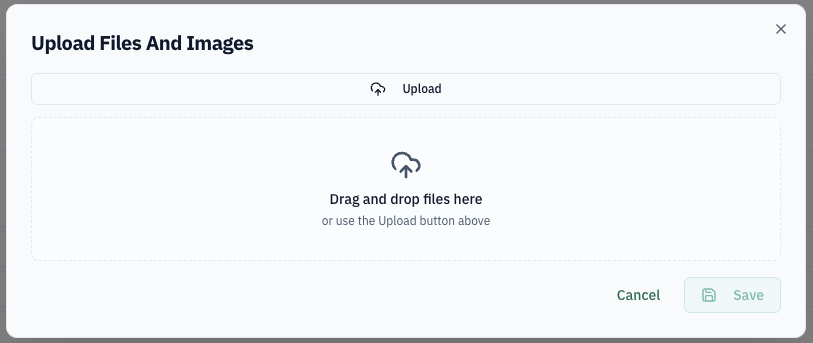
When an attachment has been successfully uploaded, the attachment icon will display green.
To add a further attachment (or remove an existing attachment), select the icon again.
Any attachments added at this stage are required to be site level evidence and should not relate to any specific element or asset.
Renewal Impact
Renewal Impact allows "what if" scenarios to be visualised.
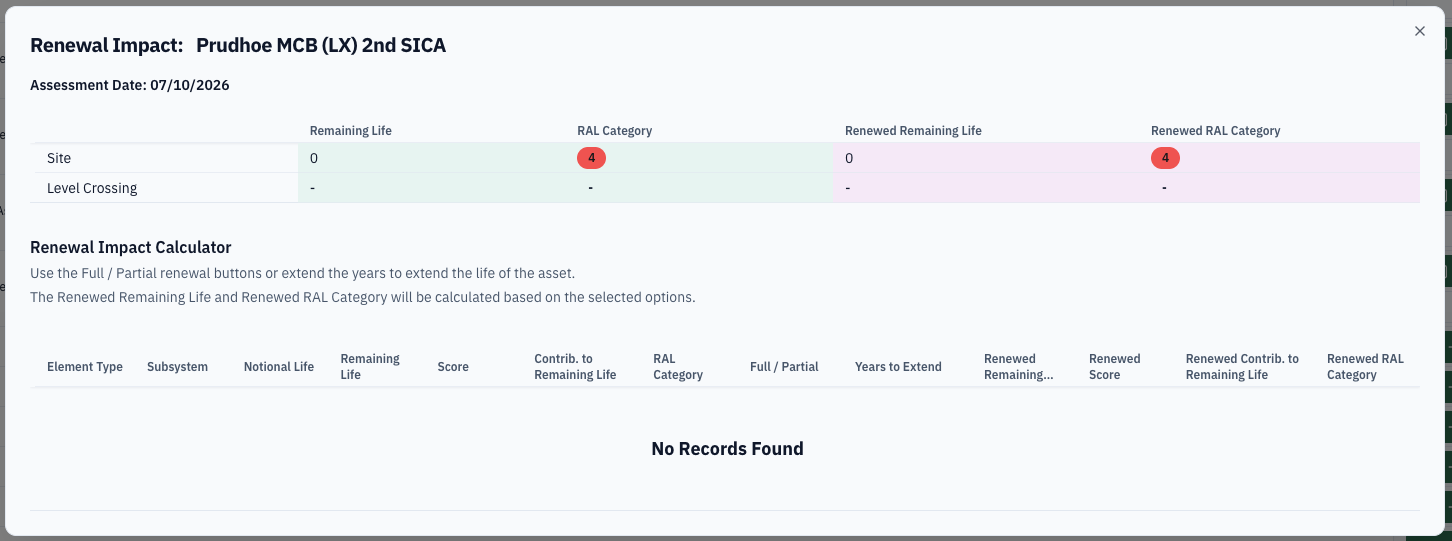
Asset renewals can be extended over several years to see the impact across the rest of the site.
Report History
Assessment History shows the current in-progress assessment alongside historic assessments, including dates, condition scores, nominal life, and available actions.

Select View for a historic imported assessment or In Progress to reopen the current assessment.
Some browsers may prompt you to allow downloads from sica.railbi.com before saving the PDF document.