Asset Selection
Asset Selection
After selecting an element type, SICA opens the Assets – [element type] page. The breadcrumb shows the route back to Upcoming Assessments, the site, and the current element type.
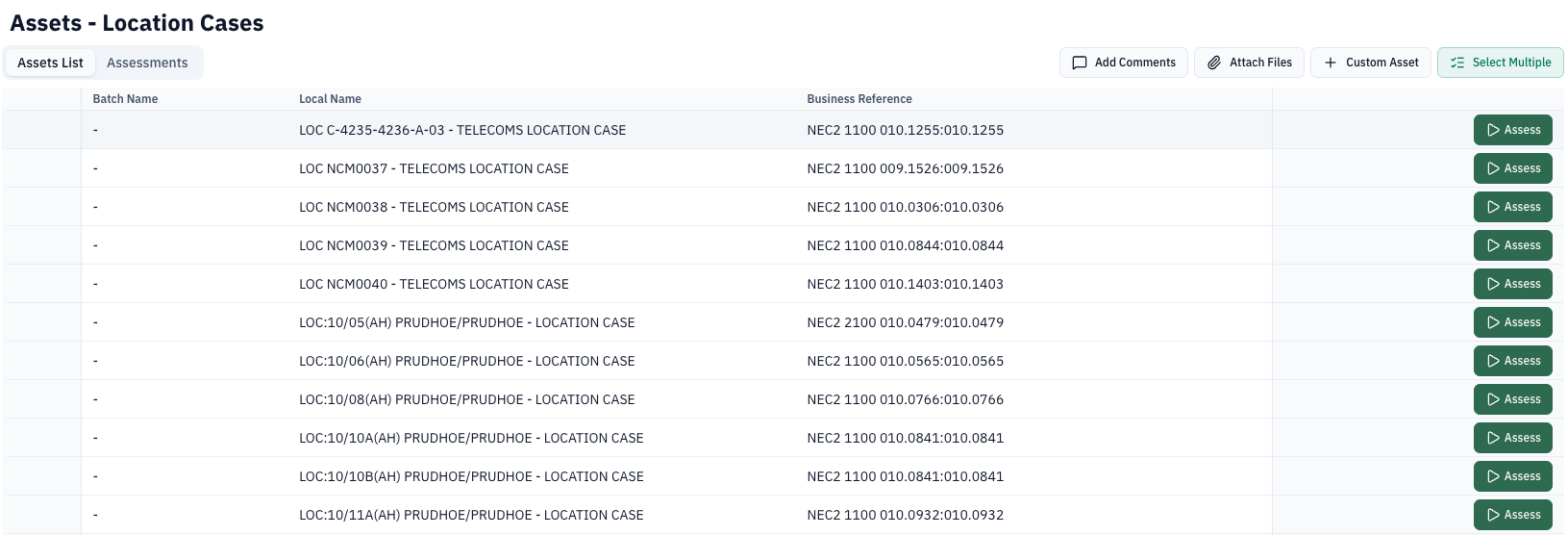
The page has Assets List and Assessments tabs. The Assets List table shows each asset's status, batch name, local name, business reference, and available actions. Use Assess beside an asset to start its assessment.
The header actions are:
- Add Comments – add comments for the element
- Attach Files – add supporting files
- Custom Asset – create an asset that is not in the list
- Select Multiple – select several assets for a batch assessment
Single Assets
To complete an assessment for a single asset, select Assess next to the asset record.
Multiple Assets
To complete an assessment for multiple assets, select Select Multiple. To add an asset to the batch, select the checkbox in the asset record.
Once you have selected all assets for the batch, select Assess Assets.
Completed Assessments
Once an asset has had its assessment completed, it will be highlighted in blue.
The Assess action is replaced by the available completion and review actions. Users can reset an assessment or review the answers provided.
Additional Options
Several additional options are available on this page.
Attachments
Images, additional attachments, and comments can be added throughout an assessment.
To add an attachment, select Attach Files, choose the upload option, and select the file. Save the attachment when prompted.
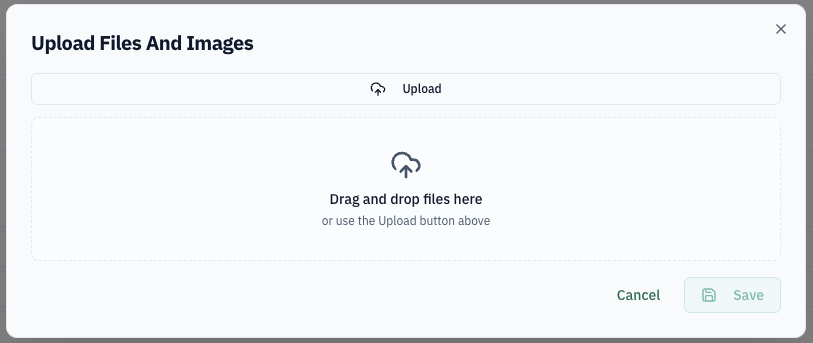
When an attachment has been successfully uploaded, the attachment icon will display green.
To add a further attachment (or remove an existing attachment), select the icon again.
Comments can be added with Add Comments and are saved with the element record.
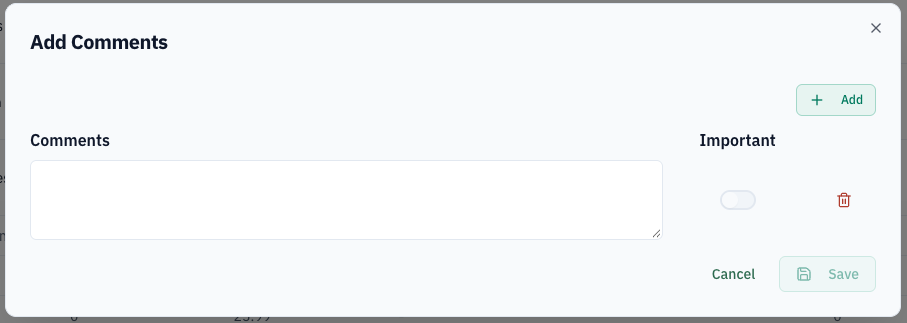
Any attachments added at this stage are required to be element level evidence and should not relate to any specific asset or the overall site.
Custom Asset
If an asset does not appear in the asset list, select Custom Asset. A dialog will request the information needed to add it for review.
After saving, the asset will appear in the Assets List.
If it was entered in error, the asset can be deleted using the available Delete action.