Completing Assessments
Asset Assessments
After selecting an asset (or batch of assets) from the Assets List, SICA opens the Questions page for the selected element type.
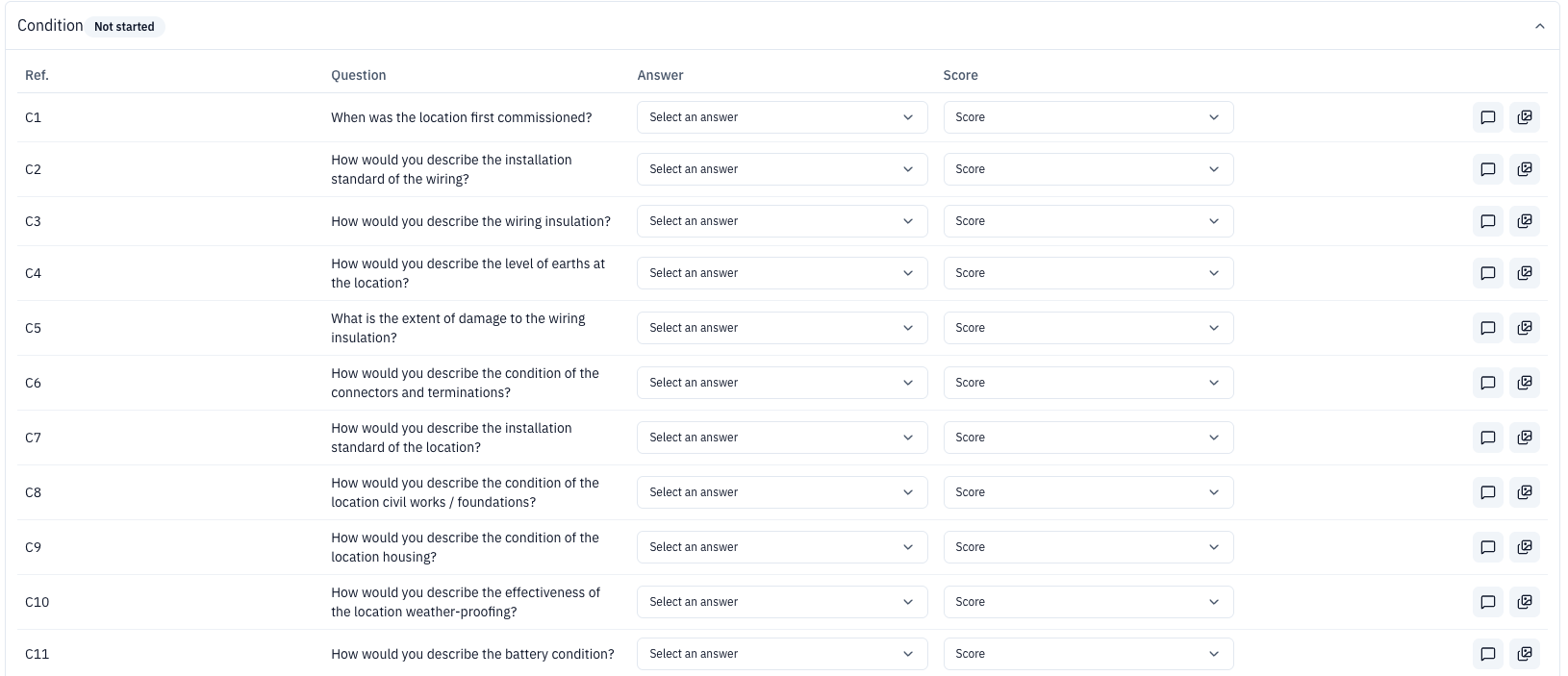
The page heading identifies the assessment type and element type. The selected asset is shown in an expandable asset panel. Use Question Feedback to provide feedback about the questions, or Copy answers from asset to reuse answers from another asset.
Questions are grouped into expandable sections such as Condition, Maintenance and Faulting, Compliance to Standards, Modification History, Environment, and Trend. Each question row includes a reference, question, Answer dropdown, Score dropdown, and actions for Comments and Files and images.
Each answer is given a score, with 1 being the best and 5 being the worst.
If the answer is between two options, the score field can be manually changed with 0.5 increments.
Attachments
Images, additional attachments, and comments can be added throughout an assessment.
To add an attachment for a question, select Files and images, then choose the upload option. Select the file and save it when prompted.
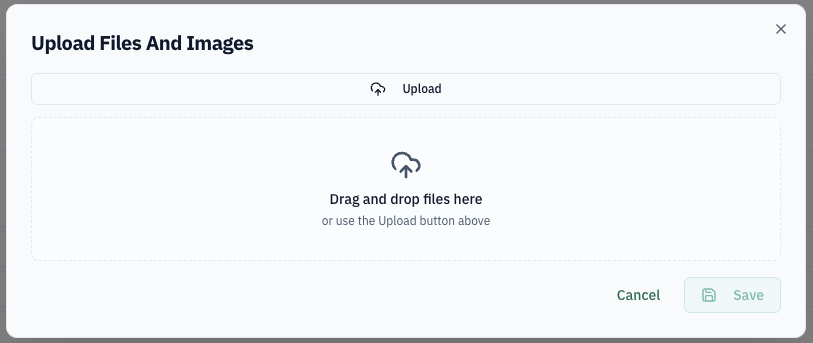
When an attachment has been successfully uploaded, the attachment icon will display green.
To add a further attachment (or remove an existing attachment), select the icon again.
Comments can be added by selecting Comments for the relevant question.
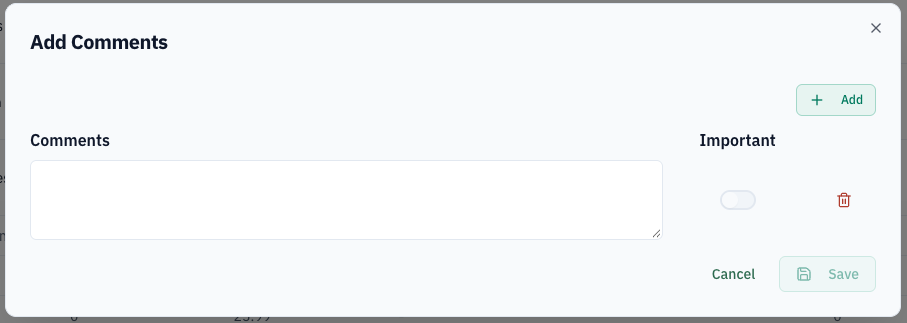
To add or edit a comment, select Comments again.
Any attachments added at this stage are required to be asset or batch level evidence, relating to the selected question only.
Assessment Sections
If an assessment has already been completed for this element type, select an asset from Copy answers from asset. The copied answers can be changed before submission.
The assessment is divided into section accordions. Open a section to answer its questions; the section status indicates whether it is Not started or complete.
-
Condition - the current condition of the selected asset(s).
-
Maintenance And Faulting - availability of spares and any fault history.
-
Compliance To Standards - the standard of installation for the selected asset(s).
-
Environment - environmental factors relative to the asset.
-
Modification History - relevant changes to the asset.
-
Trend - any asset condition trend that may change in future.
You can tab between questions and use number keys to enter information quickly.
Submission Of Asset Assessment
Once all questions have been answered, a pop up will display "Asset Assessment Complete" with two options.
-
Assess More Assets - if there are more of the same element type, selecting this option will allow the user to view the remaining assets from the asset selection view.
-
Mark Complete And Return To Elements - this option returns the user to the element selection view.
If any answers have been missed, the section will be highlighted red on submission.