Submitting Assessments
Element Completion
Before an assessment can be submitted for approval, all selected element types must be completed.
The Select Types page shows the completion state for each element type. Use Assess Assets to continue an incomplete type and Review to inspect a completed type.
Reviewing Assessment
Before an assessment can be submitted, it must be reviewed.
From the element review list, select Review Assessment to open the site-level review page.
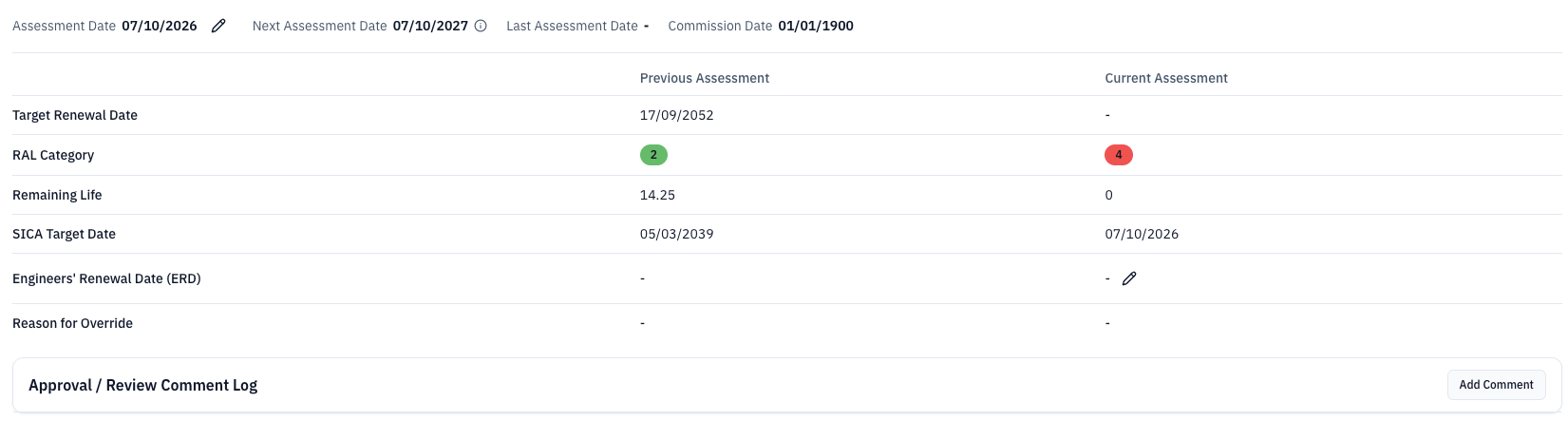
The page heading identifies the site. The top actions are Renewal Impact, Reports, and Submit for Approval. If asset assessments are incomplete, the page displays No asset assessments completed or the relevant completion status.
The review header displays Assessment Date, Next Assessment Date, Last Assessment Date, and Commission Date. Select the edit button beside Assessment Date to change it.
The Next Assessment Date is populated from the assessment history.
The comparison table contains Target Renewal Date, RAL Category, Remaining Life, SICA Target Date, Engineers' Renewal Date (ERD), and Reason for Override, with Previous Assessment and Current Assessment columns.
Subsystems
Based on the site type, one or more subsystems will be displayed.
The site subsystem will be displayed for all site types.
Control System, Interlocking and Externals will be displayed for interlockings only.
Site
This subsystem displays site information.
The current category of the site is displayed, along with the SICA target date and remaining life.
Control System
This subsystem shows information on the Control System element types.
If an engineer believes the renewal date should be different to the target renewal date, this can be entered here.
Select Override engineers renewal date beside the Engineers' Renewal Date (ERD) field in the Current Assessment column, then enter the new date.
If a new ERD date is entered, an override reason should be added to support this change.
Save the ERD override together with its reason.
Interlocking
This subsystem shows information on the Interlocking element types.
If an engineer believes the renewal date should be different to the target renewal date, this can be entered here.
Select Override engineers renewal date beside the Engineers' Renewal Date (ERD) field in the Current Assessment column, then enter the new date.
If a new ERD date is entered, an override reason should be added to support this change.
Save the ERD override together with its reason.
Externals
This subsystem shows information on the External element types.
If an engineer believes the renewal date should be different to the target renewal date, this can be entered here.
Select Override engineers renewal date beside the Engineers' Renewal Date (ERD) field in the Current Assessment column, then enter the new date.
If a new ERD date is entered, an override reason should be added to support this change.
Save the ERD override together with its reason.
Adding Review Comments
As with the site, element or asset comments, users have the ability to add comments to the assessment review.
To add a comment, select Add Comment in the Approval / Review Comment Log. Save the comment when complete.
Further comments can be added by repeating this process.
Submitting Assessments
Once the review has been completed, the assessment can now be submitted for approval.
To submit the assessment, select Submit for Approval at the top of the Review Assessment page.
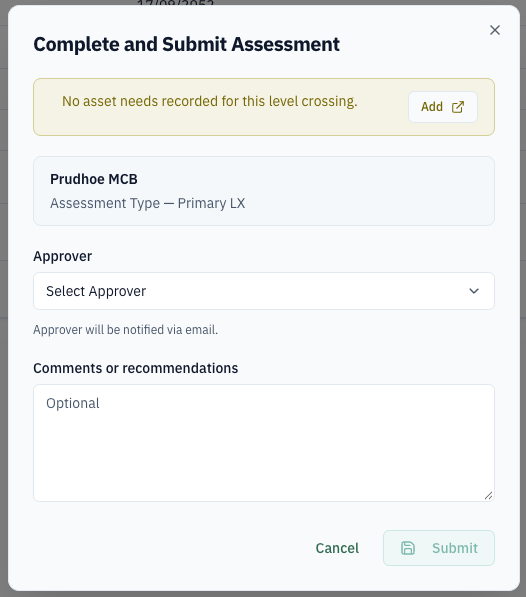
The Complete and Submit Assessment dialog shows any missing asset-needs information, the site and assessment type, an Approver selector, and an optional Comments or recommendations field. If no asset need has been recorded, use Add to record one before submitting.
If an approver was not selected during the assessment setup, select one here. The approver is notified by email.
Add any final comments or recommendations, then select Submit to finalise the submission. Cancel or the close button leaves the assessment unsubmitted.
The SICA assessment is then submitted for approval, and the record on the Upcoming Assessments list view is updated with its approval status.