Route Cards
Route Cards can be added from the Index View of any interlocking.
Creating A Route Card
Route Cards can be created by selecting the Edit icon, followed by Add Route Card,
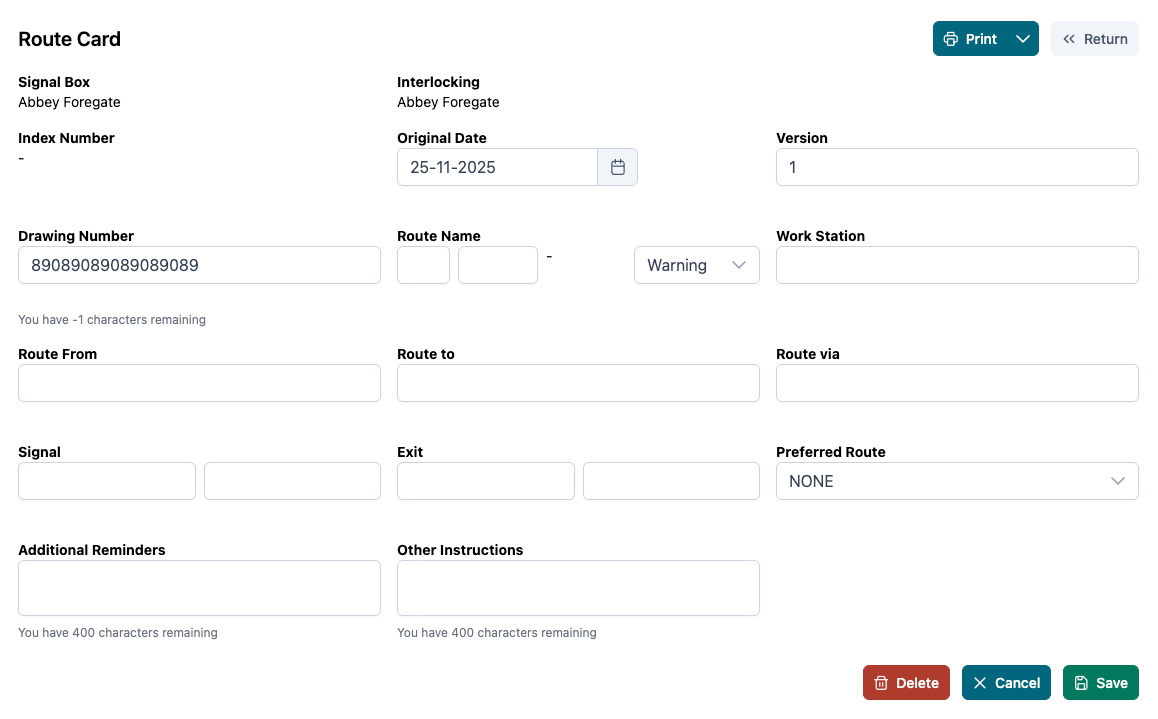
The following fields are required:
| Field | Details |
|---|---|
| Index Number | The number of the index. |
| Original Date | Date the route card is created. |
| Version | Pre-populated from the Index version. |
| Drawing Number | Pre-populated from the Index drawing number. |
| Route Name | The name of the route. |
| Route From | The route origin. |
| Route To | The route destination. |
| Route Via | Alternative or Preferred route. Any additional tracks covered by the route. |
| Signal | The entry signal. |
| Exit | The exit signal. |
| Reminders | Any additional reminders. |
| Other Instructions | Any other instructions applicable. |
Index Number is made up of three parts and is automatically generated.
-
The first part of the index number is the prefix which is taken from the Entry Signal prefix when the record is saved.
-
The centre section of the index number is taken from the Entry Signal number, and is auto-populated when the record is saved.
-
The suffix of the index number is taken from the Route Name letter and this again is auto-populated when the user saves the record.
Signals (both Entry and Exit) are broken down into two parts - a string value and alphanumeric value. If a route card exists for this Index, the signal prefix is pre-populated from the previous route card.
Points Listings
The Points listings allows the points to be added to the route card.
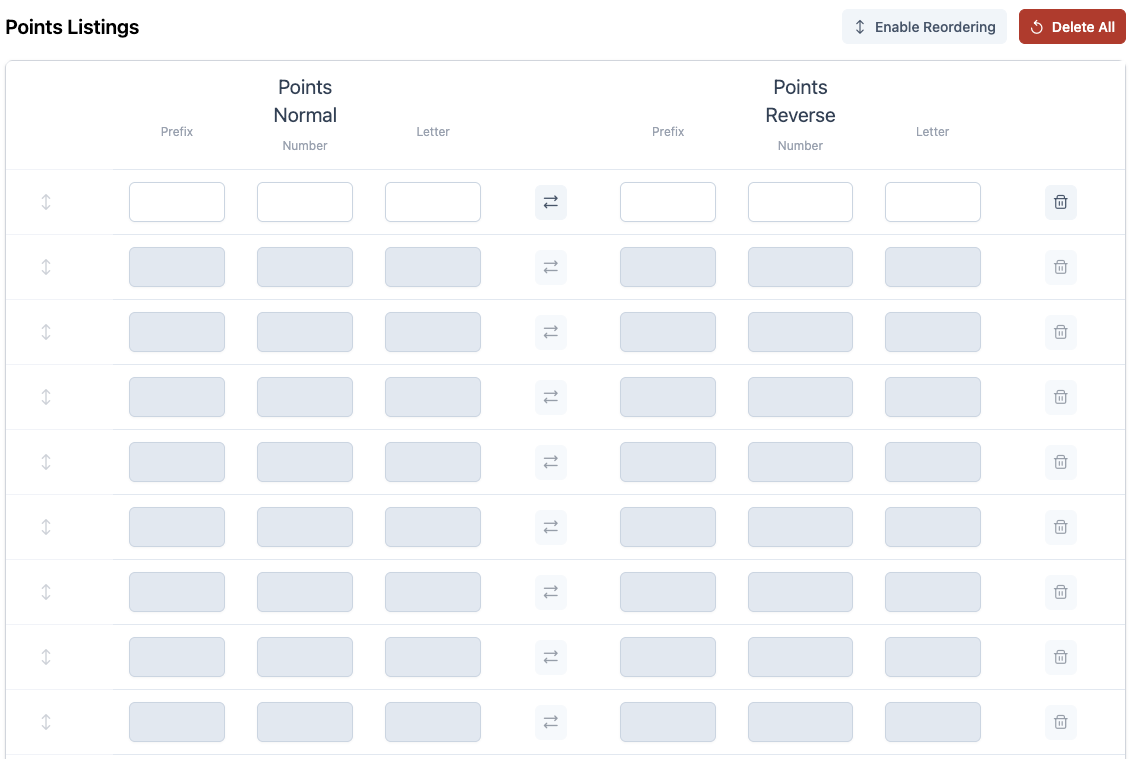
Each point is broken up into three sections, with the only the first two being required. Points can be added as a Normal or Reverse point. To switch once it has been entered, select the switch icon.
To delete a point, select the delete icon.
To re-order, use the hamburger icon to drag the point to the correct place.
Once complete hit save.
Printing Route Cards
Route Cards can be printed by selecting the Print option at the top of the page.
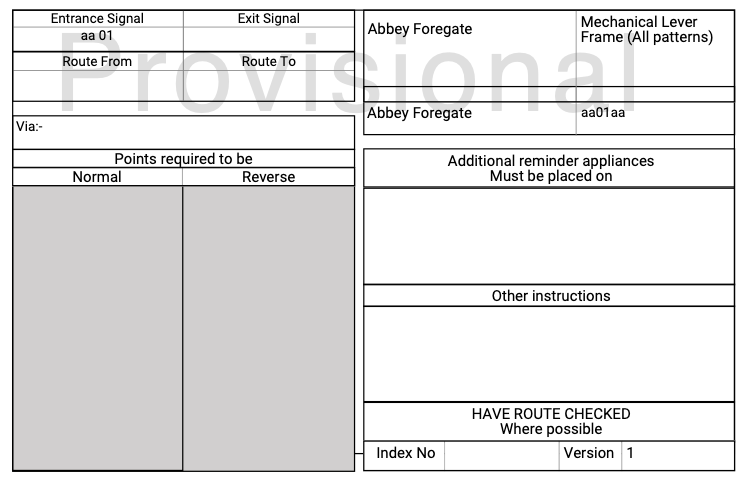
There are two different print options:
Print
This is the standard print format. Selecting this option will open / download the route card PDF for printing.
Print Without Borders
This option will open / download the route card without borders added to the document. Print without borders can be found by selecting the arrow on the Print button.