Start an assessment
From the upcoming assessments list, find the site. Use search, filters, or sorting to narrow the list.
Select Start for a new inspection. If an inspection is already in progress, select Continue.
Inspection setup
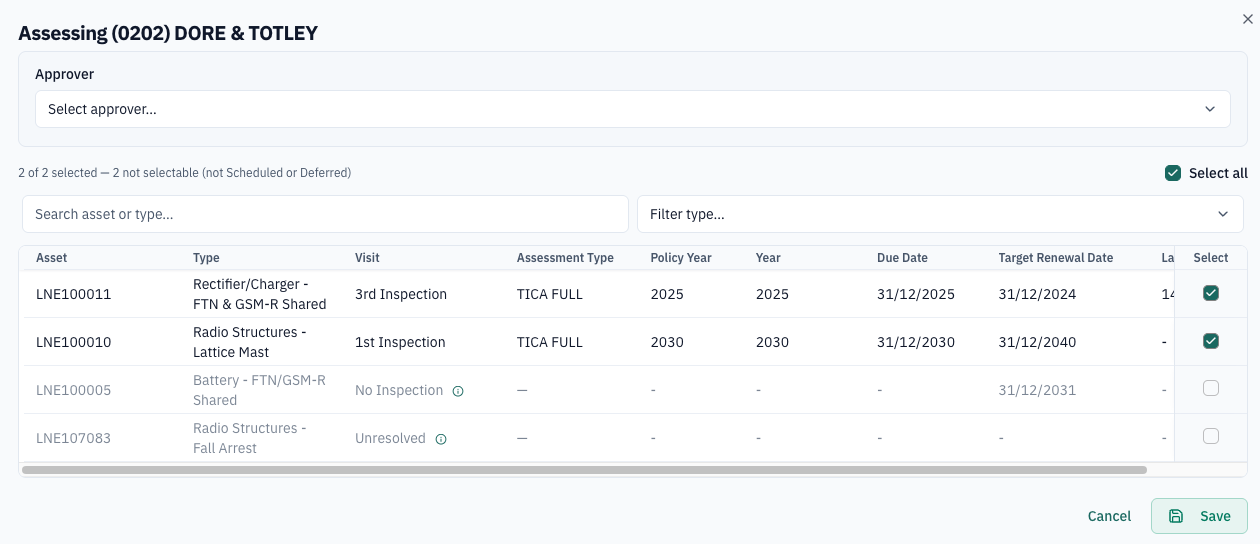
The setup window shows the site name and lets you choose an approver. It lists the assets and assessment types available for the site.
Use the asset search or Filter type control to narrow the selection. The table includes Asset, Type, Visit, Assessment Type, Policy Year, Year, Due Date, Target Renewal Date, Last Assessed, and Select.
Some assets may be unavailable because they are not scheduled or deferred. Select the assets to include, then select Save to open the element selection view.