Start an assessment
From the upcoming assessments list, find the site. Use search, or filter and sort.
Choose Start for a new assessment, or Continue if one is already in progress.
Assessment elements
When a new assessment is launched, a pop-up window is displayed with a list of assets for the selected site.
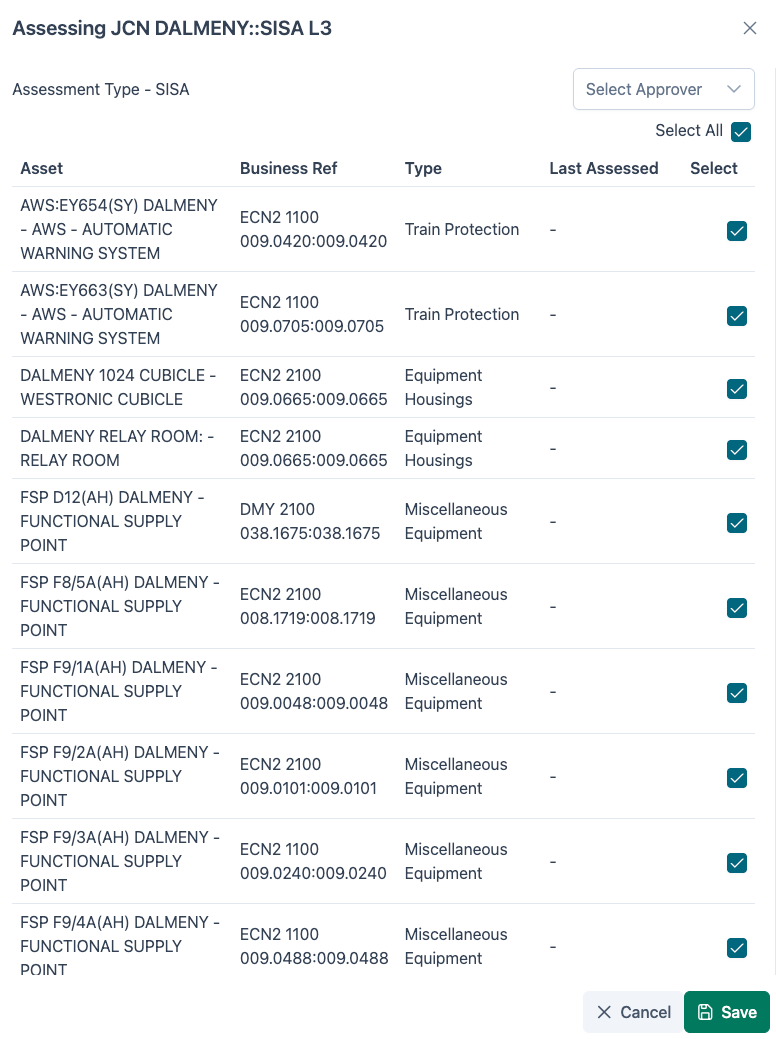
This list can be filtered using the Filter Type dropdown, or searched for asset, business reference or type using the search bar.
An approver for this assessment can be selected at this stage. If the approver is not known, this can be added before submission.
If the user is completing a full assessment, the "Save" button can be selected to continue to the element selection screen.
To remove any elements from the assessment, untick the checkbox in the select column for that element record before clicking "Save".