Asset Selection
Asset Selection
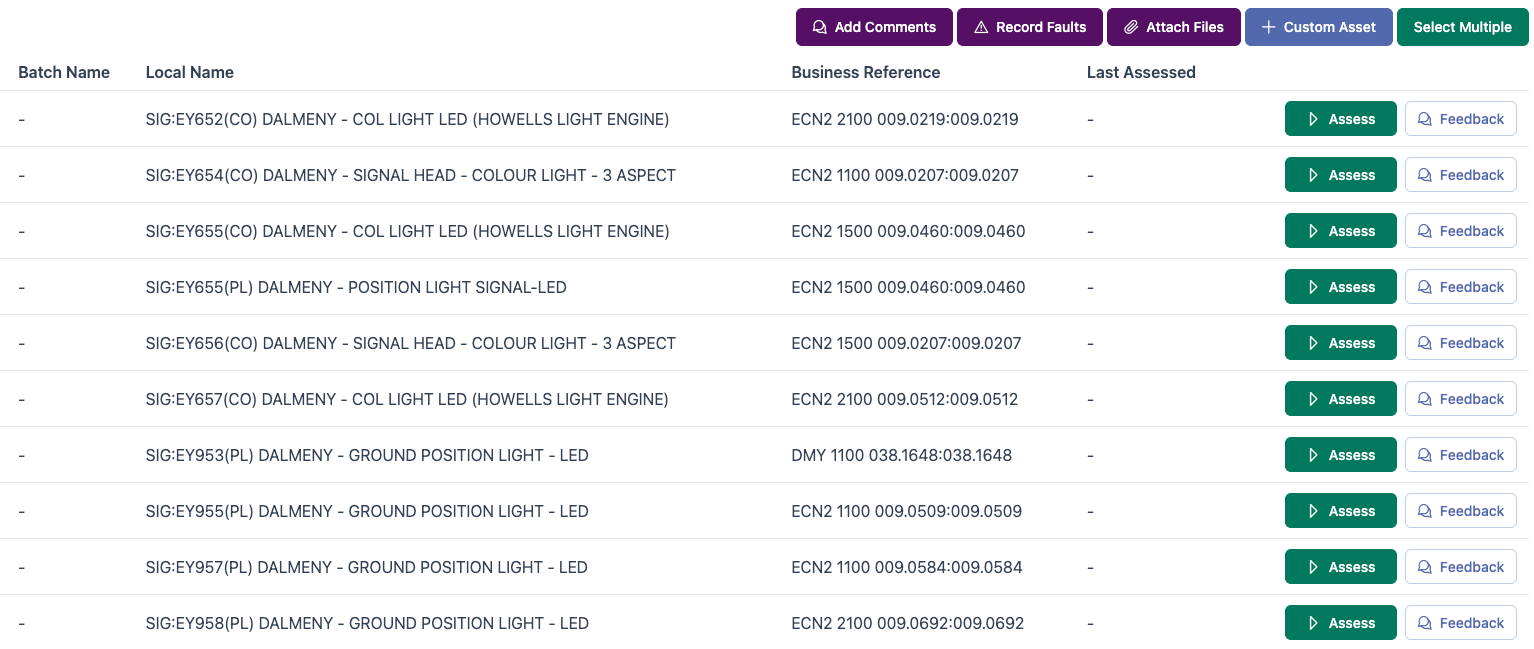
After selecting the Element Type, the Asset selection screen will be displayed.
Assess Asset
To begin the assessment of any asset, select the Assess button.
Feedback
Feedback allows for comments to be added at an Asset level.
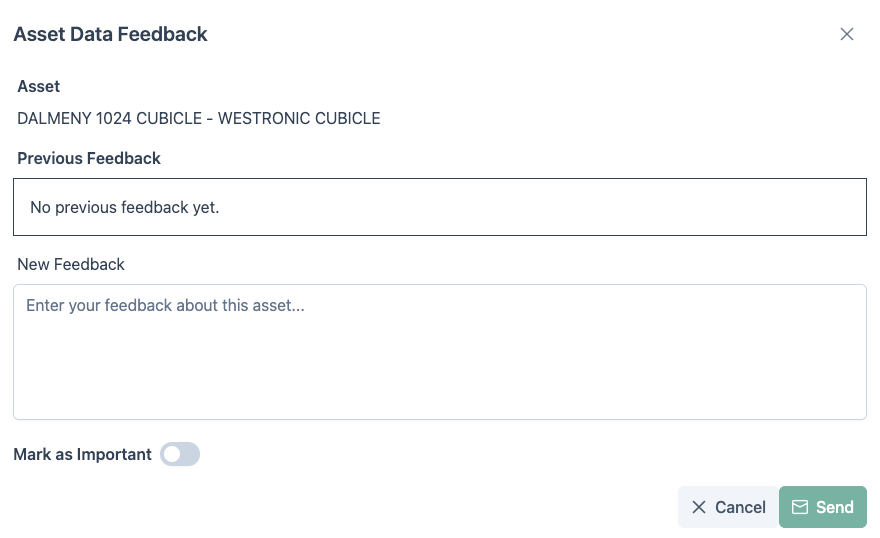
Enter new feedback, then select if it should be marked as important. Click Send to save this feedback.
Actions
Add Comments
Comments may be added by selecting Add Comments. Comments added here are at a Element Type level.
Record Fault
Faults can be recorded against specific assets by selecting the Record Faults option.
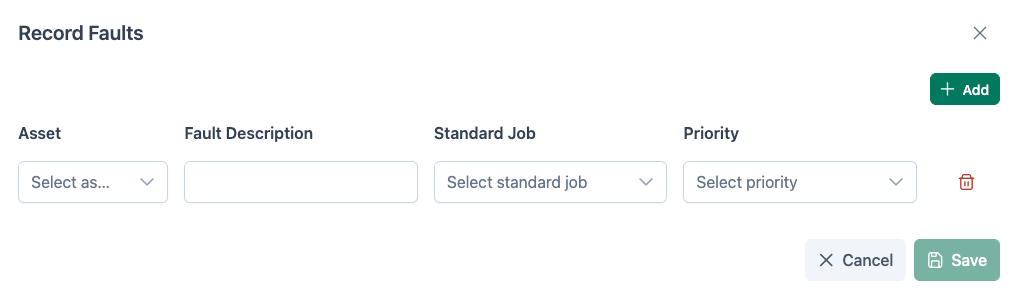
The asset is selected from the Asset dropdown, followed by a fault description being entered. The job type is selected from Standard Job then a priority is set.
To save the Fault, click the Save icon.
Attach Files
Files and images may be uploaded. Any attachments are added at a Element type level.
Custom Asset
Custom Assets can be generated by selecting the Custom Asset button.
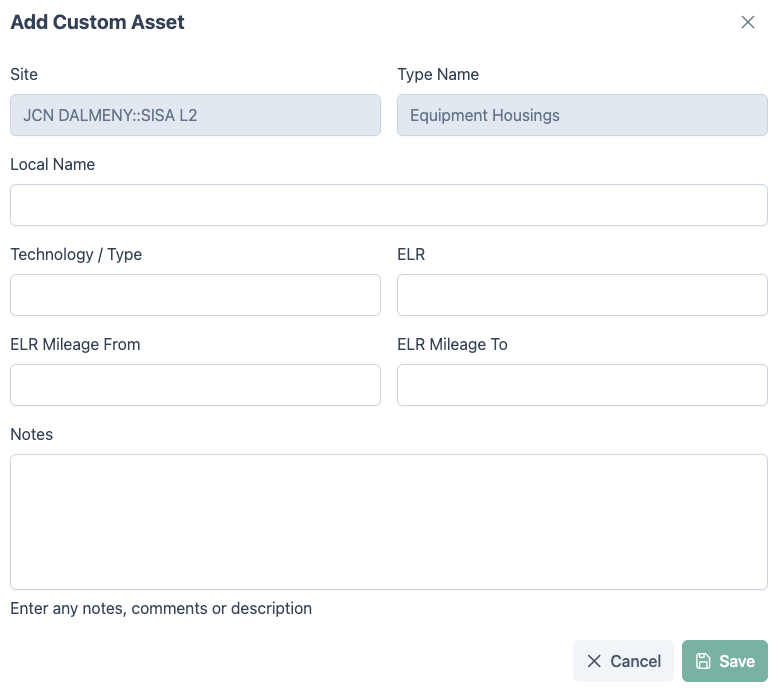
Enter the required details, then click save to add the custom asset.
Once they have been added, Custom Assets can be deleted by selecting the Delete Icon from their Asset row.
Select Multiple
Select Multiple allows batches of assets to be assessed.
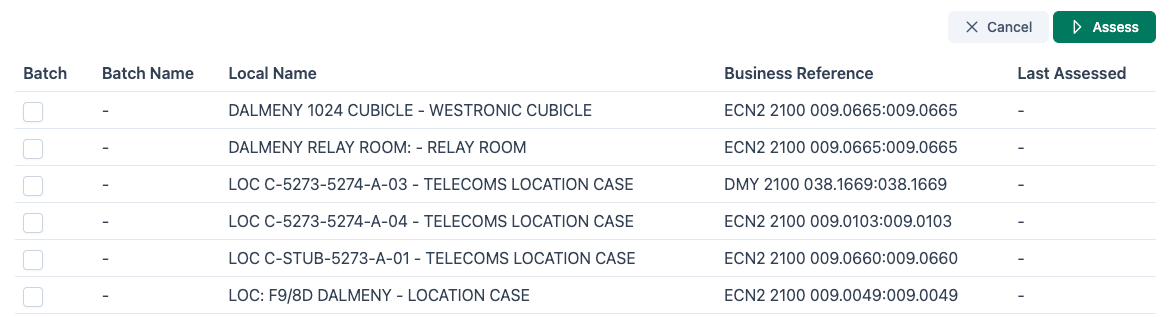
Select multiple assets to add them to the batch, then click the Assess button to begin the assessment.