Data Health
Data Health is a reporting dashboard designed to show the quality of the data within Datastore.
The Data Health dashboard can be accessed via the sidebar menu by selecting the Data Health.

Dashboard View
The Dashboard View displays an overall picture of the data health for that particular Route. Any assigned routes will be highlighted on this table.
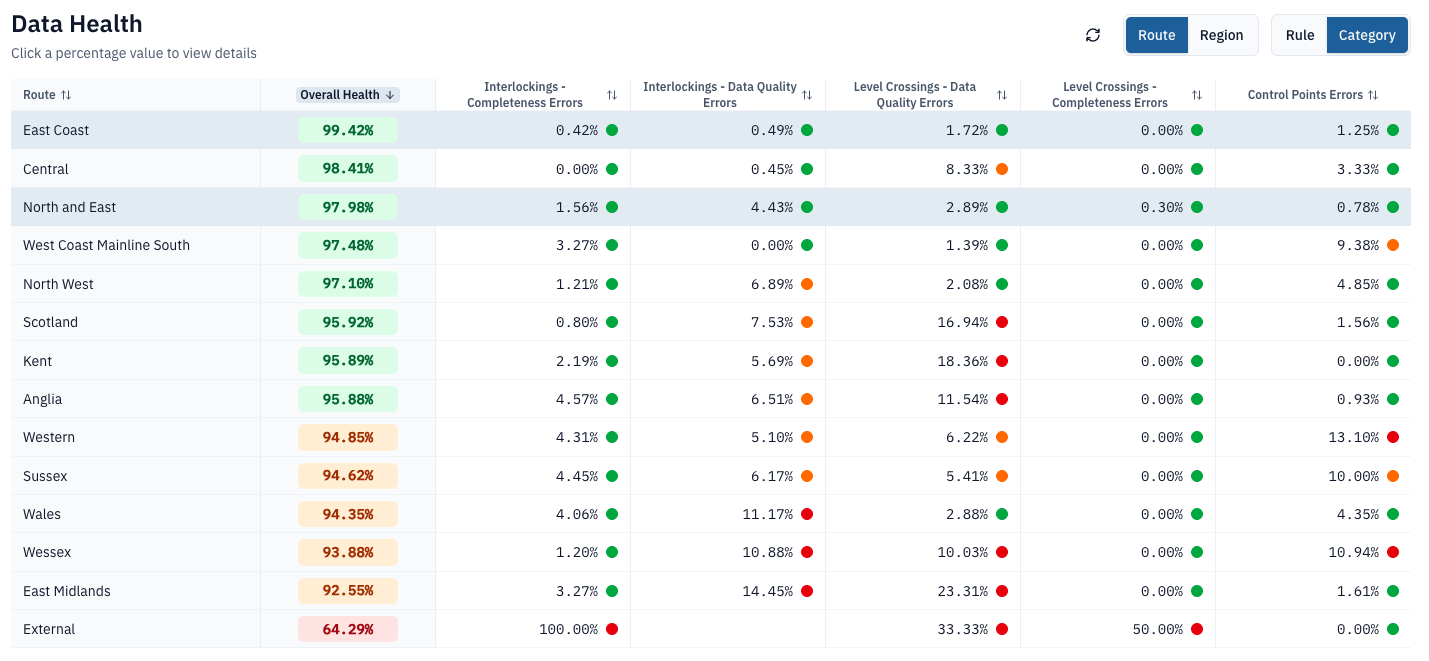
This view can be switched between Route / Region using the breakdown toggle at the top of the dashboard.

By default, the breakdown is shown by category, but this can be switched to rule-based breakdowns by selecting the toggle at the top of the dashboard.

Overall Health
The overall health for the Route / Region is displayed next to the name field.
A higher percentage indicates better data quality. A score of 100% indicates no data health rules are currently failing.

To view a more in-depth breakdown, click on the Overall Health pill to open the Overall Health modal.
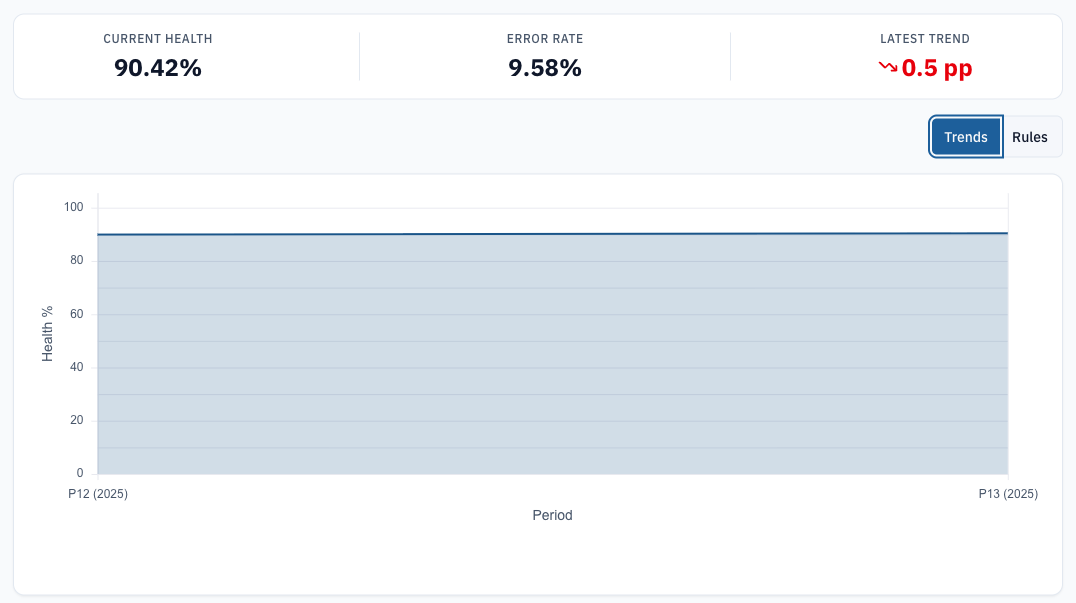
Trends
This display shows the trends over time for the data health.
Trends are automatically updated after each completed data import and are shown by Control Period.
Rules
This display shows a breakdown of the data health by rule set.
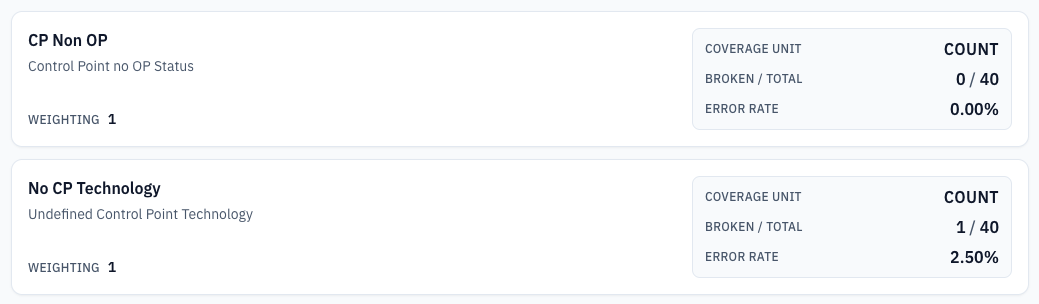
To view the erroneous data, click on the breakdown card for that rule. Erroneous data refers to assets failing the selected data health rule.
That rule is then displayed, with view options for both Trends and Affected Assets. Select Affected Assets to view all assets showing errors for that rule.
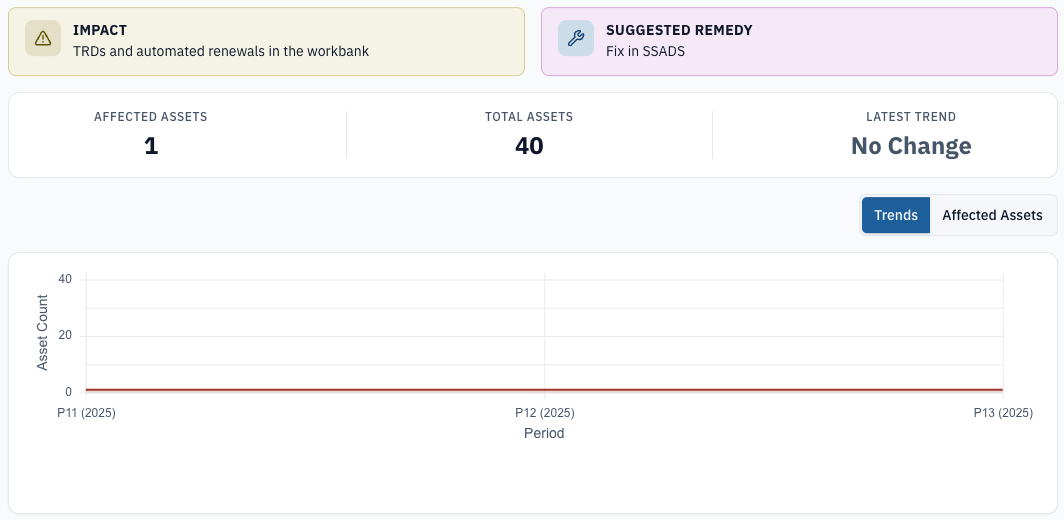
Click on the Asset's SS name to open the Asset Area Data record.
Rule data can also be opened directly from the Dashboard View by clicking on the Rule Health column.
Data Health Scores
The overall data health score is determined by 17 different rules, each with their own weighting.
Rules
The following rules are what determines the overall data health score.
Each rule has a specific weighting - the higher the weighting, the larger difference it makes to health percentage.
The specific weighting numbers can be found on the Overall Health Rules view.
| Entity | Rule | Coverage Unit |
|---|---|---|
| Control Points | No route or route inconsistent with interlockings | Count |
| Control Points | No technology | Count |
| Control Points | Not OP but with OP interlockings | Count |
| Interlocking | Electronic interlocking with internal wiring override set | SEU |
| Interlocking Mileages | Gaps filled by Rail BI | RK |
| Interlocking SICA | Overdue SICA assessment | SEU |
| Interlockings | Control system TRD before current90 CP start | SEU |
| Interlockings | Externals TRD before current CP start | SEU |
| Interlockings | Interlocking TRD before current CP start | SEU |
| Interlockings | No technology | SEU |
| Interlockings | RK = 0, OP or UNCOM (no ELR mileages) | SEU |
| Interlockings | SEU = 0, OP or UNCOM | Count |
| Level Crossings | No ALCRM data associated | Count |
| Level Crossings | No crossing type | Count |
| Level Crossings | No interlocking associated | Count |
| Level Crossings | No TRD or TRD before current CP start | Count |
| LX SICA | Overdue SICA assessment | Count |