Offline Access
TICA can download assessment data to browser storage for use without a network connection.
Set up offline mode
Select Offline Data from the Upcoming Assessments header. Turn Enable offline mode on before choosing routes or downloading data.
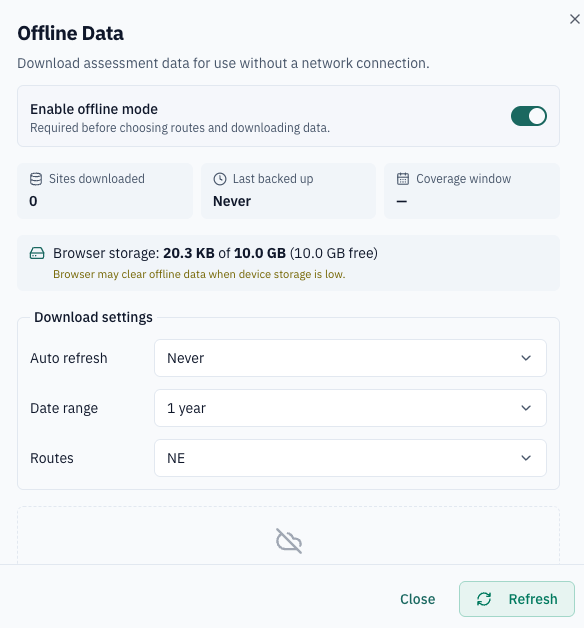
The Offline Data panel shows the number of sites downloaded, the last backup time, the coverage window, and the browser storage used. The local session showed a 10 GB storage limit, although the available capacity depends on the device.
Under Download settings, choose:
- Auto refresh – how often offline data is refreshed
- Date range – the period of assessment data to download
- Routes – the routes to include
Select Refresh to download the selected data. The route selector supports all available routes and can select more than one route.
Upload or refresh data
Open Offline Data again to review the current download status and refresh the data after reconnecting to a network.
Offline data is stored in the browser. The browser may clear it when device storage is low, so avoid relying on it as the only copy of assessment data.