Interlocking View
The interlocking view can be accessed via the Interlocking tab of the Dashboard View.
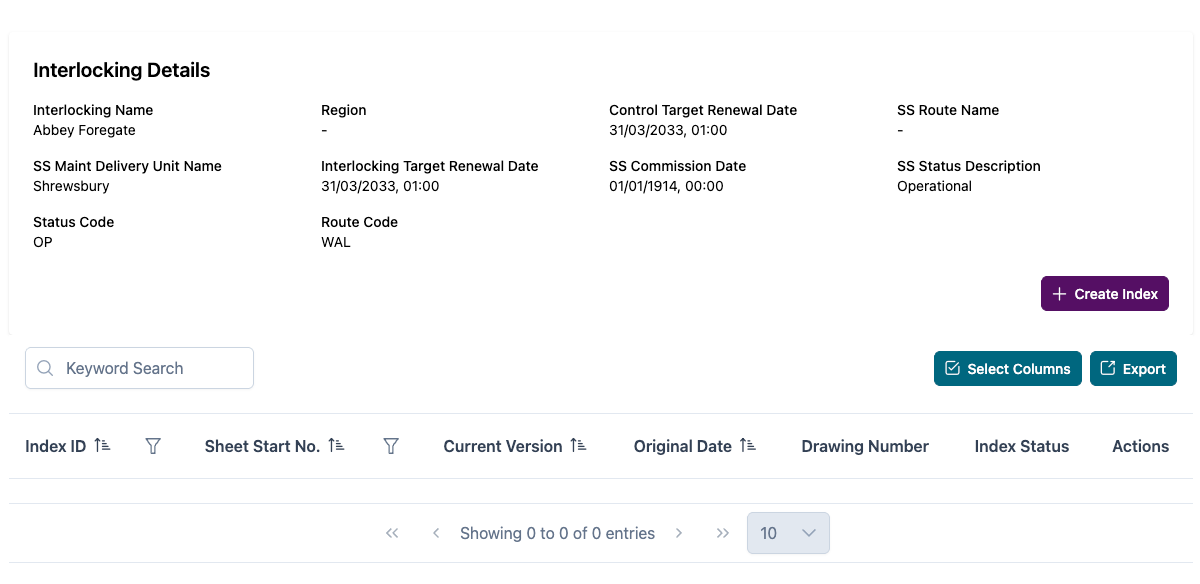
This page displays all of the information for the interlocking that is stored in SSADS (Signalling Schemes Asset Data Store).
History
The history tab shows an audit history of changes that were made to that interlocking.

The action column shows which action was taken (Add, Delete or Update). The date and the user that name the change is also displayed.
Filters, Sorting And Searching
Search
The search box allows interlockings to be found quickly using a text search.

To perform a search, enter the keyword to search by in this box. The data table will automatically update as each character is added or removed.
To clear the search, remove the text from the field or refresh the page.
Filters
To add a filter to the Interlocking Name column, select the Filter icon.
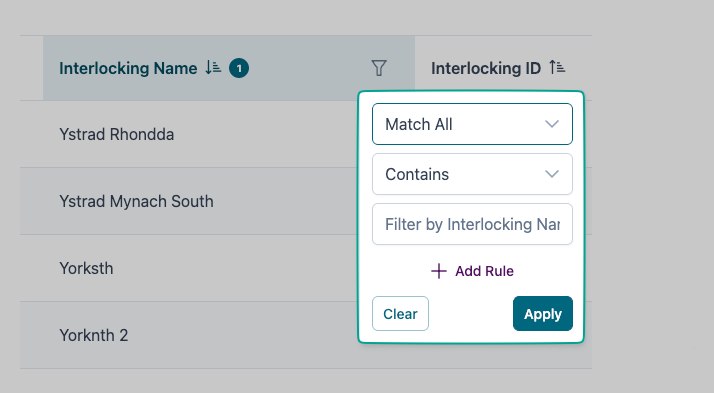
Set which constraints are to be applied to the filter, then click Apply. To add additional rules, select Add Rule.
To remove any filters that have been added, select clear.
To add a filter to the Interlocking ID column, select the Filter icon.
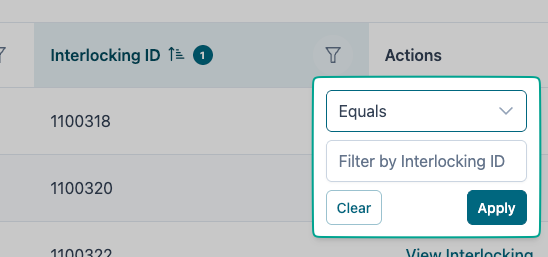
Set which constraints are to be applied to the filter, then click Apply.
To remove the filter on this column, select Clear.
Sorting
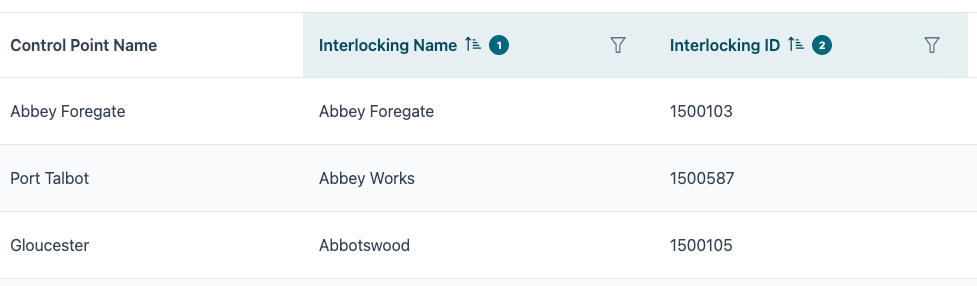
To select a column to sort by, click on the column title row. To add an additional sort column, hold Ctrl and click on the additional column name.
The sort order is displayed via a numerical indicator on the column title row.
Select Columns
The Select Columns button allows fields to be added or removed from the data table display.
Export
The Export button allows the currently displayed data to be exported to CSV.
This respects any keyword searches, filtering or sort order that is set on the data table.
Create Index
To create an Index, select the Create Index icon from any interlocking view.
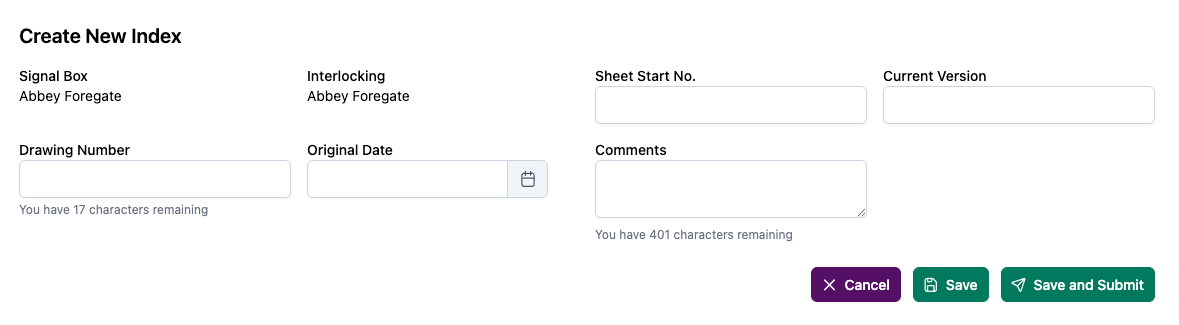
The following fields must be set before Saving or Submitting the Index:
Drawing Number is supplied by NRG, or taken from the control tables depending upon the practice of the individual record group.
Original Date is the date that the index creation was completed on.
Sheet Start Number is supplied by NRG (or taken from the control table's index) and is the starting number the produced index sheets / route cards will start from. All additional index sheets / route cards will be incremented from this starting position.
Current Version is the version number of the index. This can be a combination of numbers and letters.
Save / Submit
Comments may also be added at this stage, although it is not mandatory.
To save the Index, click Save. This will set it to a draft status.
To save and submit the index for checking, click Save and Submit.
To discard the creation of the new index, click Cancel.