Approving Indexes
Once an index has been checked, it can then be approved.
Approving requires the Approver user permission
Select an Index that is Checked and click View Index.
Approve Index
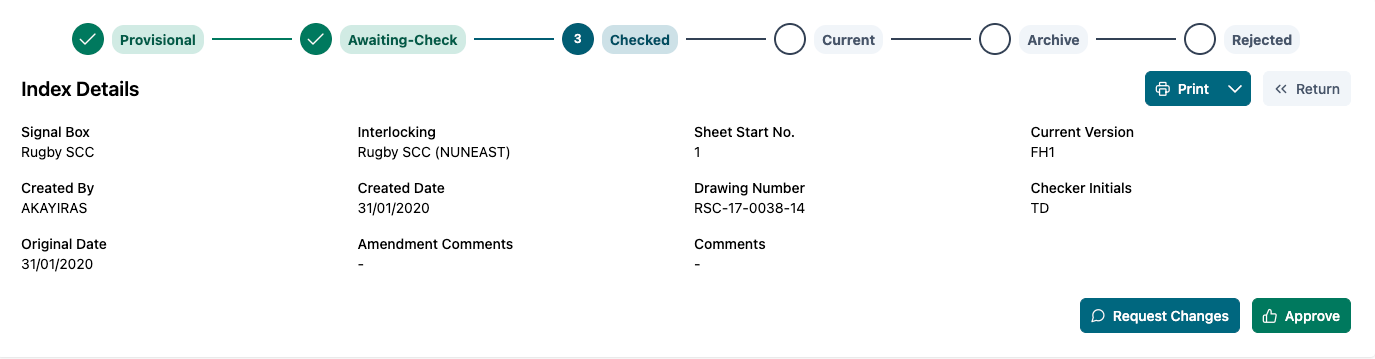
Check the index information along with route cards to ensure the data is correct and you are happy to proceed with confirming the Approval.
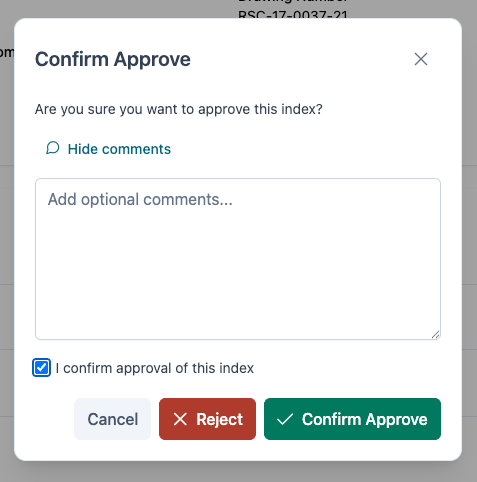
Once you are ready to proceed, click Approve. A prompt will be displayed to allow any comments to be added. You must select the "I confirm approval this index" box before confirming the Approval.
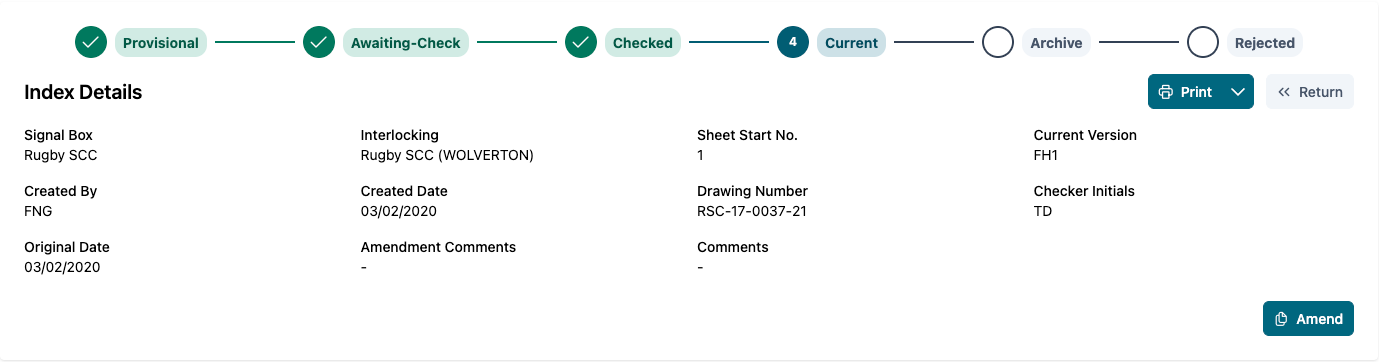
After approval, the index will then go into the Current status.
Reject Approval Changes
If the information is not correct, Approval can be Rejected. This will set the Index status to Rejected. Select Request Changes to open the Request Changes modal.
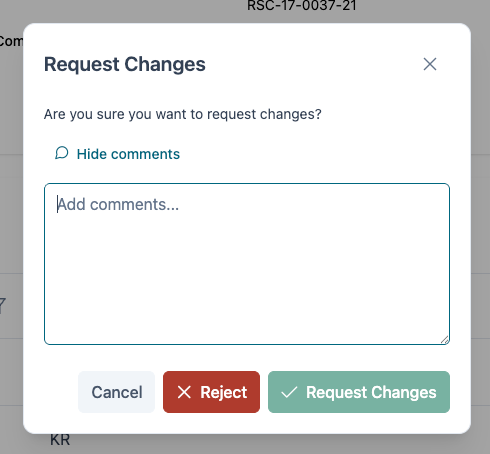
To Reject an Approval, select the Reject button on the Check Confirmation modal.
The index can then be returned to provisional by selecting the Return to Provisional button. This gives the option to add any further comments when returning back to provisional status.
Request Changes
If the information requires some changes before approval, changes can be requested.
Select the Request changes button to open the modal.
In the comments box, enter any changes required. This will be displayed in the Amendment comments data for the Index.
The index will then be returned to provisional by selecting Request Changes button.